



1 Description
This application note explains the process for interfacing and communicating with an MX200 Vacuum Controller from a Windows PC.
The recommended method is to use The Fredericks Company Online Serial Terminal. The Online Serial Terminal communicates directly with the MX200 through a supported web browser and allows MX200 serial commands to be sent without installing additional communications software.
USB communication is recommended when connecting the MX200 directly to a Windows PC.
Alternatively, you can use the Tera Term serial communications program. Tera Term must be installed on your computer before following these instructions. If you do not have Tera Term installed, download the latest version from GitHub .
Back to Table of Contents2 Required Equipment, Tools, and Software
| Equipment/Tool | Part Number/Requirement |
|---|---|
| MX200真空控制器 | 2-7900-034, 2-7900-037, or 2-7900-038 |
| USB Cable | USB Type A to USB Type B cable |
| Windows PC | PC with an available USB port |
| Google Chrome or Microsoft Edge | Online Serial Terminal method |
| Tera Term | Manual method only |
3 Finding the COM Port
On the MX200, press the Home button and navigate to:
Global Setup → Communications → Interface
Verify that USB is selected.
Then, navigate to:
Global Setup → Communications → Settings
Remember the baud rate. You will select it when connecting to the MX200 using either the Online Serial Terminal or Tera Term.
Connect the MX200 to your Windows PC using a USB Type A to USB Type B cable.
Connect the USB Type B connector to the USB port on the back of the MX200 and the USB Type A connector to an available USB port on your Windows PC.
Windows will automatically recognize the MX200 and assign it to a COM Port.
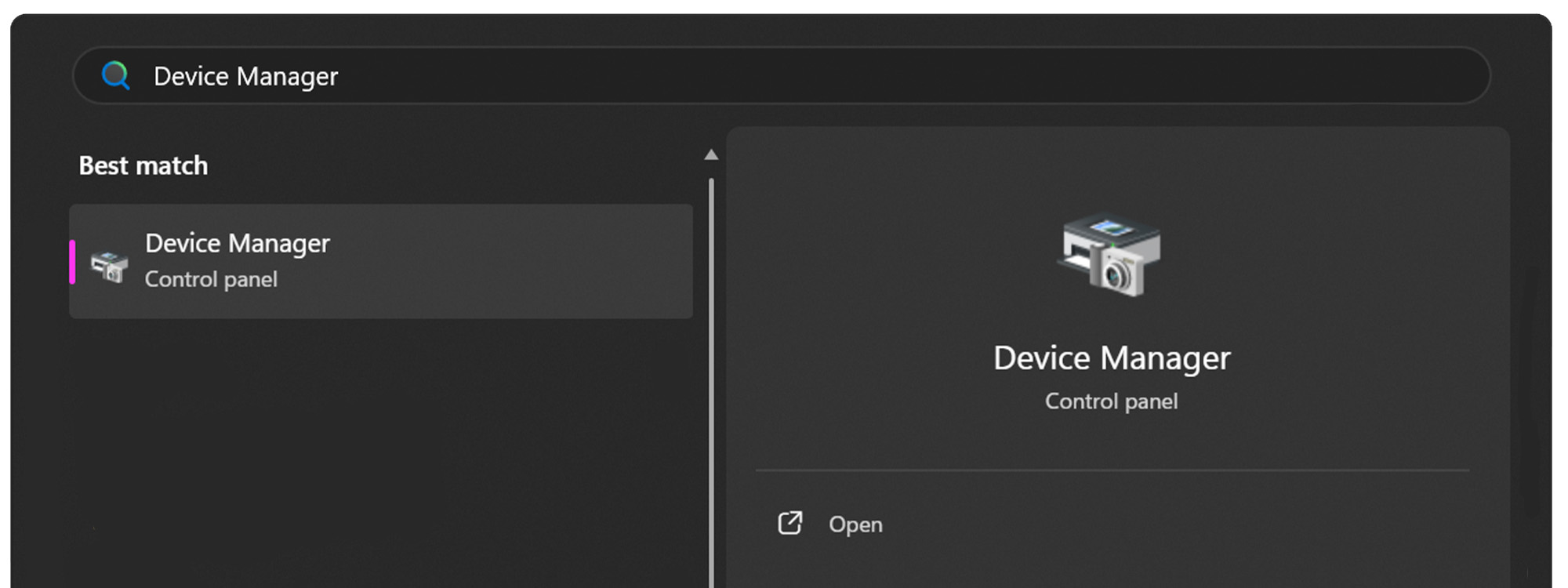
Open the Start Menu on your Windows PC.

Open the Device Manager.
Expand the Ports (COM & LPT) dropdown.
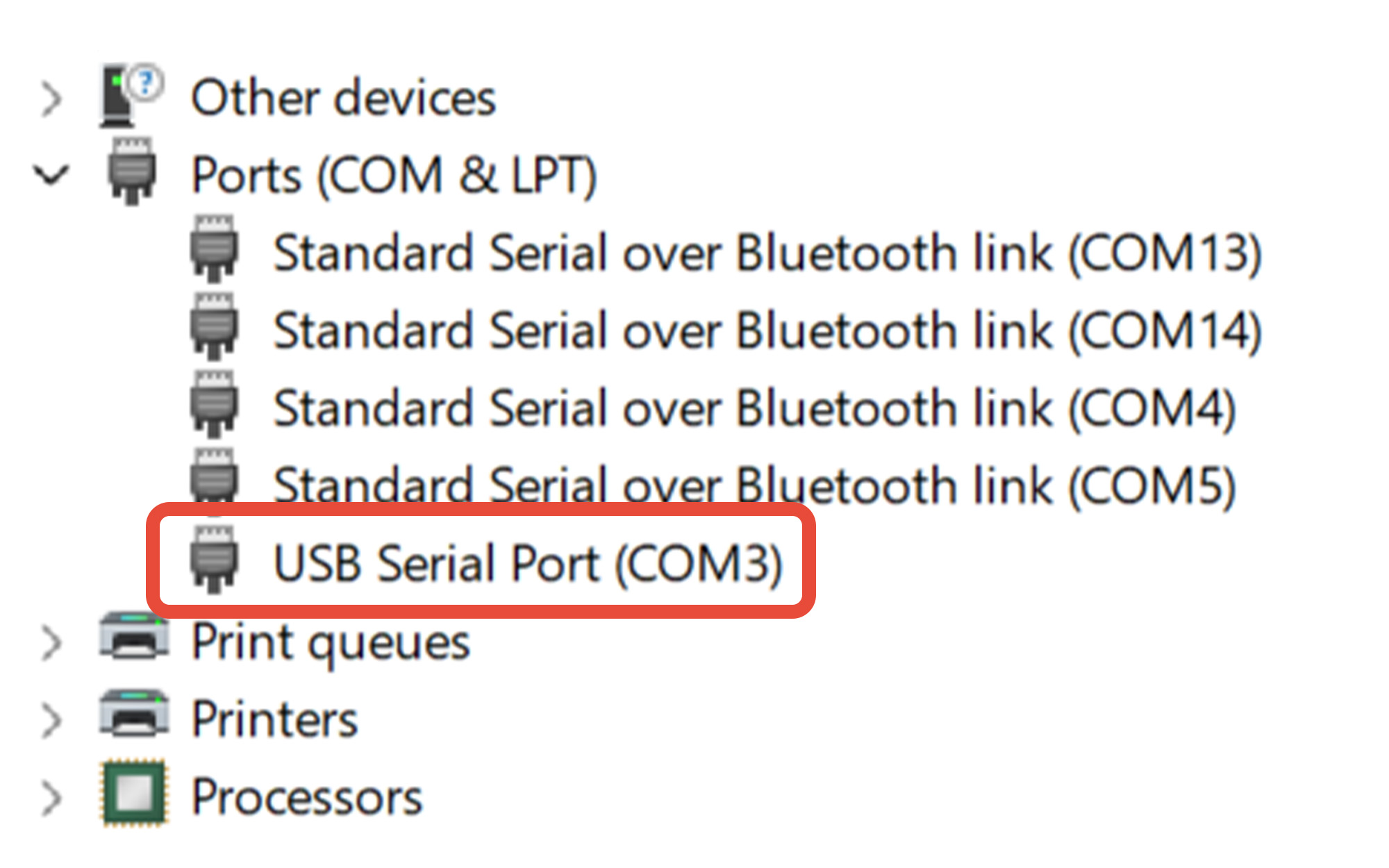
Determine the COM port assigned to the MX200. In this example, the MX200 is assigned to COM3.
If you're unsure which COM port belongs to the MX200:
- Leave Device Manager open.
- Disconnect the USB cable from the PC.
- Watch which COM port disappears from the Ports (COM & LPT) list.
- Reconnect the USB cable.
- The COM port that reappears is the port assigned to the MX200.
Remember this COM port number. You will select it when connecting to the MX200 using either the Online Serial Terminal or Tera Term.
4 Using The Fredericks Company Online Serial Terminal
Using Google Chrome or Microsoft Edge, visit The Fredericks Company Online Serial Terminal.
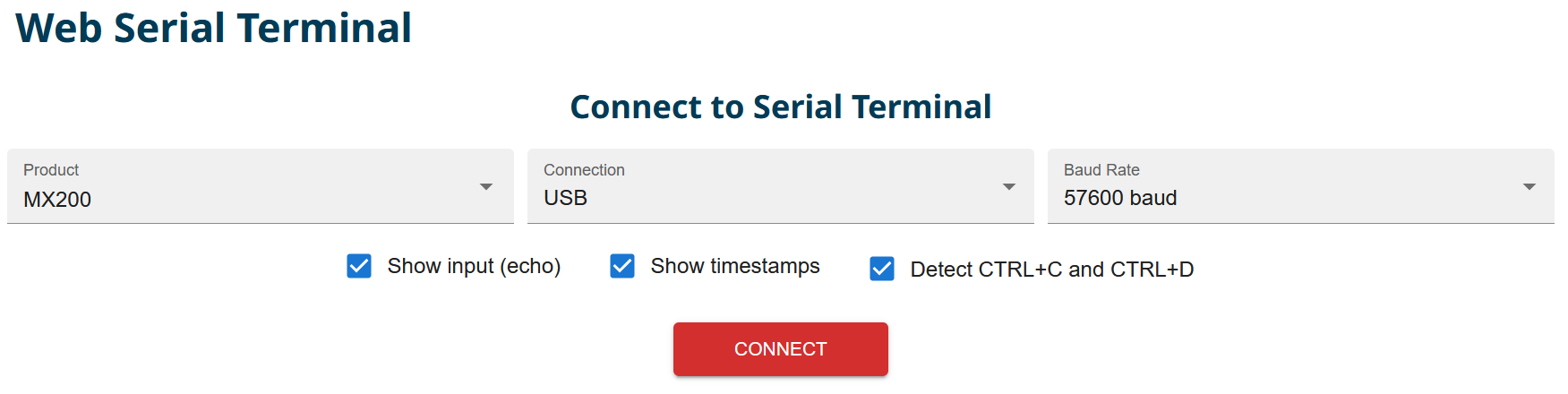
Select MX200 from the Product dropdown and USB from the Connection dropdown. Select the baud rate configured on your MX200. In this example, 57600 baud is used.
Click CONNECT to open the serial-port selection window.
Select the COM port assigned to your MX200, then click Connect.
If you are unsure which COM port to select, see Section 3, Finding the COM Port.
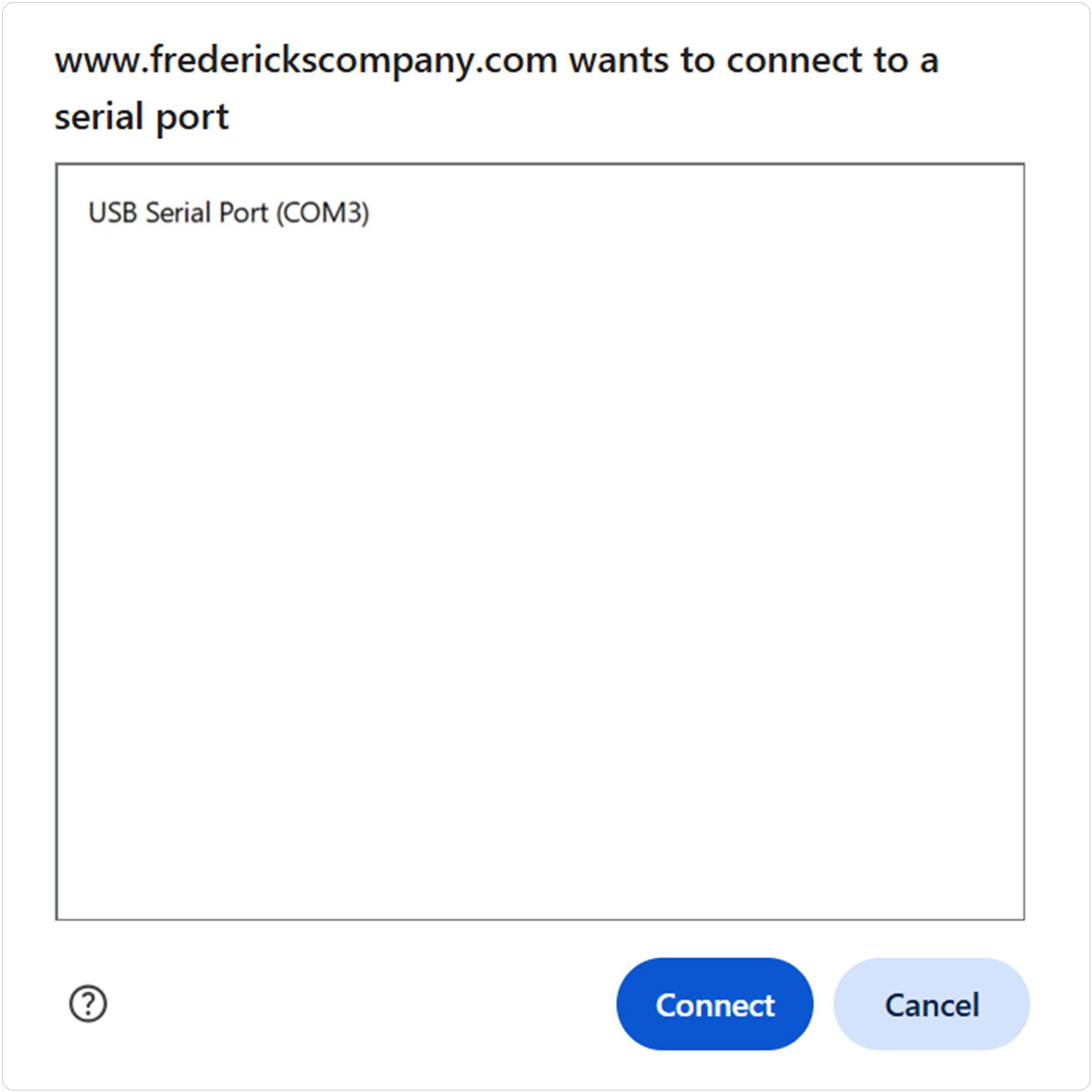
Use the terminal input field or the Command Assistant to send a test command to the MX200. For example, to read the vacuum measurement from channel one:
Send: S101
Continue using the Command Assistant to locate and send additional supported MX200 commands or enter commands manually in the terminal.
See Section 6, MX200 Communications Commands, for the available commands.
5 Using Tera Term
Open Tera Term on your Windows PC.
Select Serial, then select the COM port assigned to your MX200 from the Port dropdown.
Click OK to continue.
If you are unsure which COM port to select, see Section 3, Finding the COM Port.
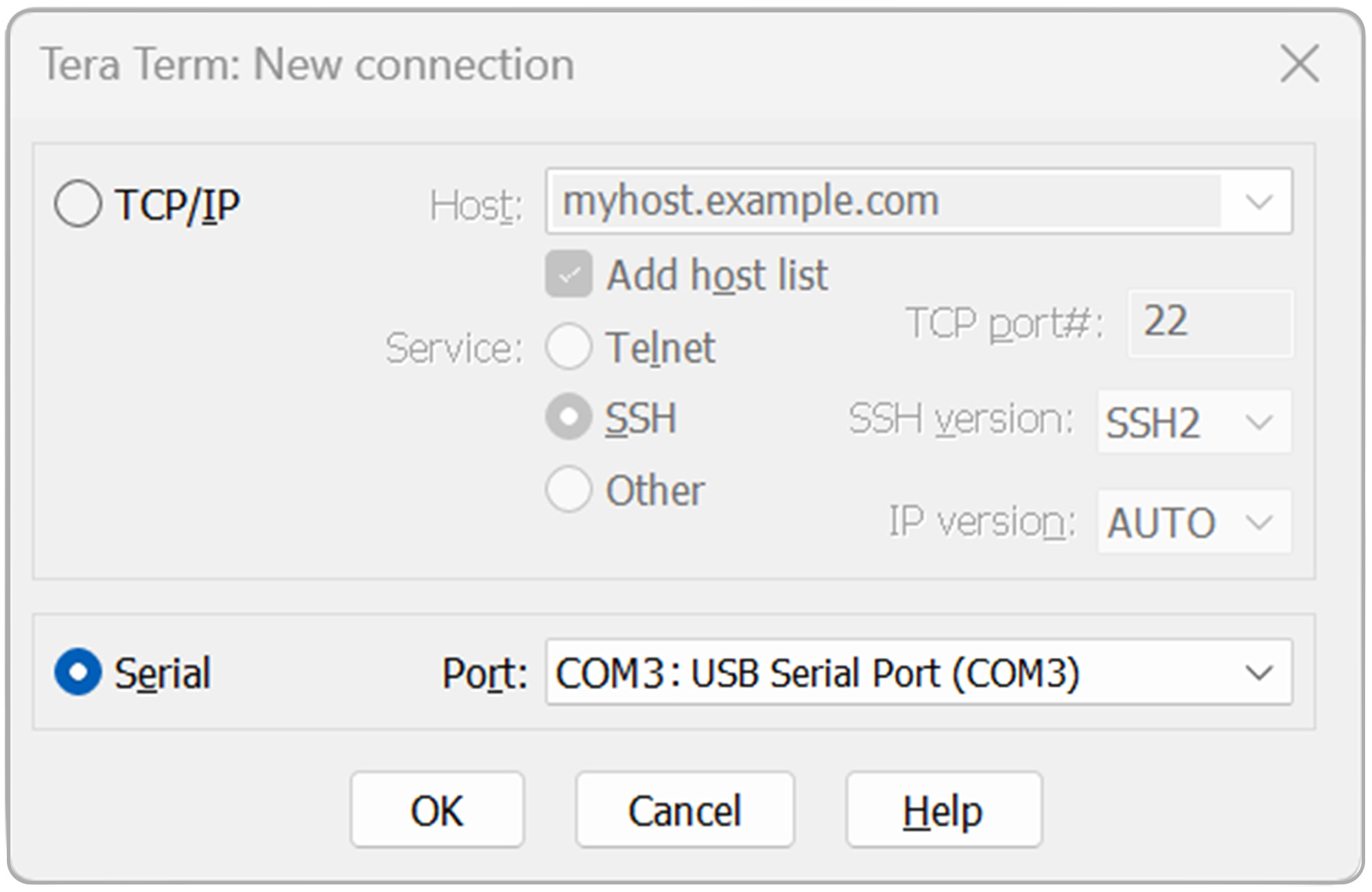
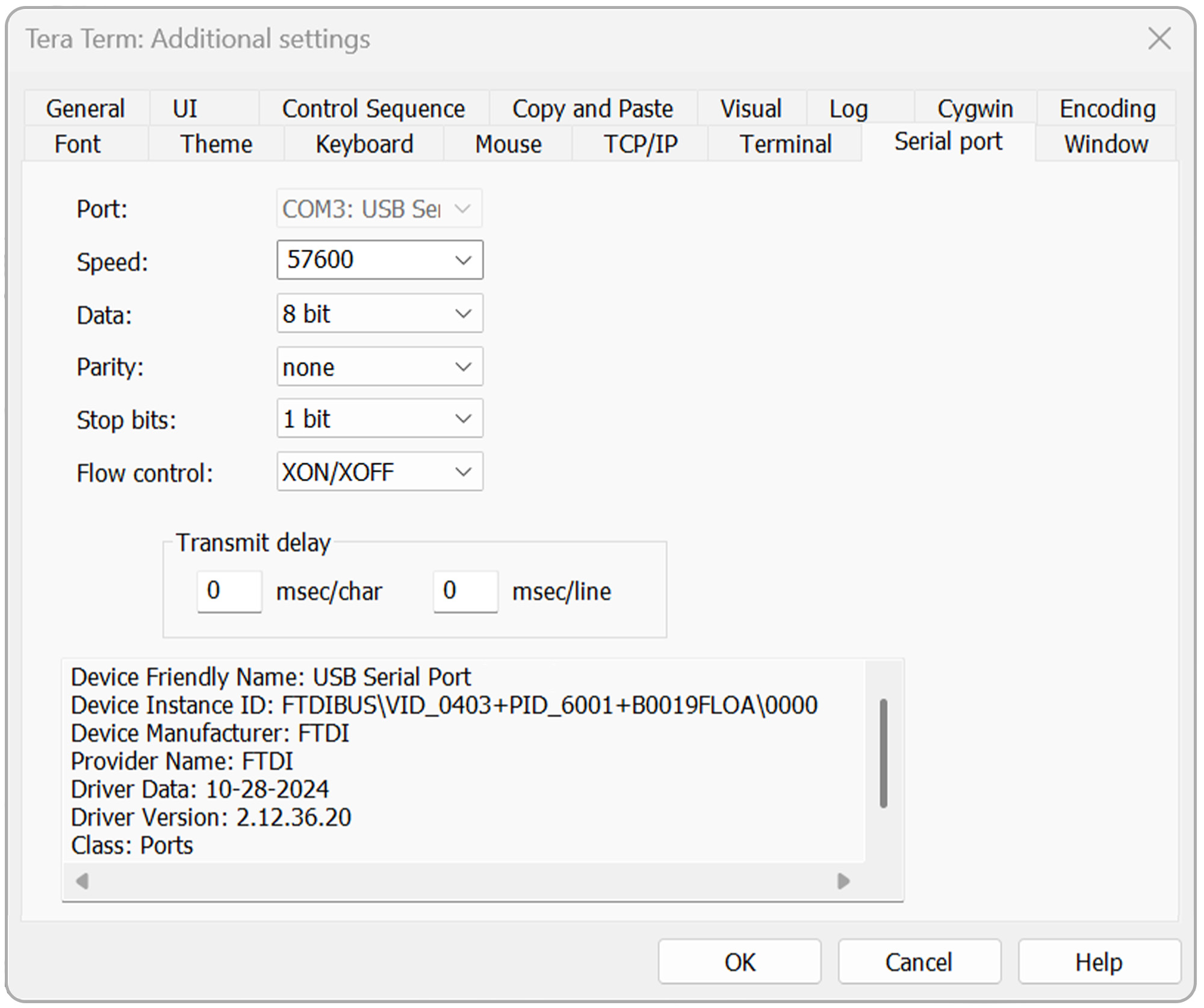
Open the Setup menu, then select Serial port.
Verify that the serial port settings are configured as follows:
- Baud rate: Baud rate configured on the MX200
- Data: 8 bit
- Parity: none
- Stop: 1 bit
- Flow control: Xon/Xoff
- Transmit delay: 0 msec/char, 0 msec/line
Click OK to continue.
Open the Setup menu again, then select Terminal.
For standard communications, configure:
- Receive: CR+LF
- Transmit: CR+LF
- Local echo: Checked
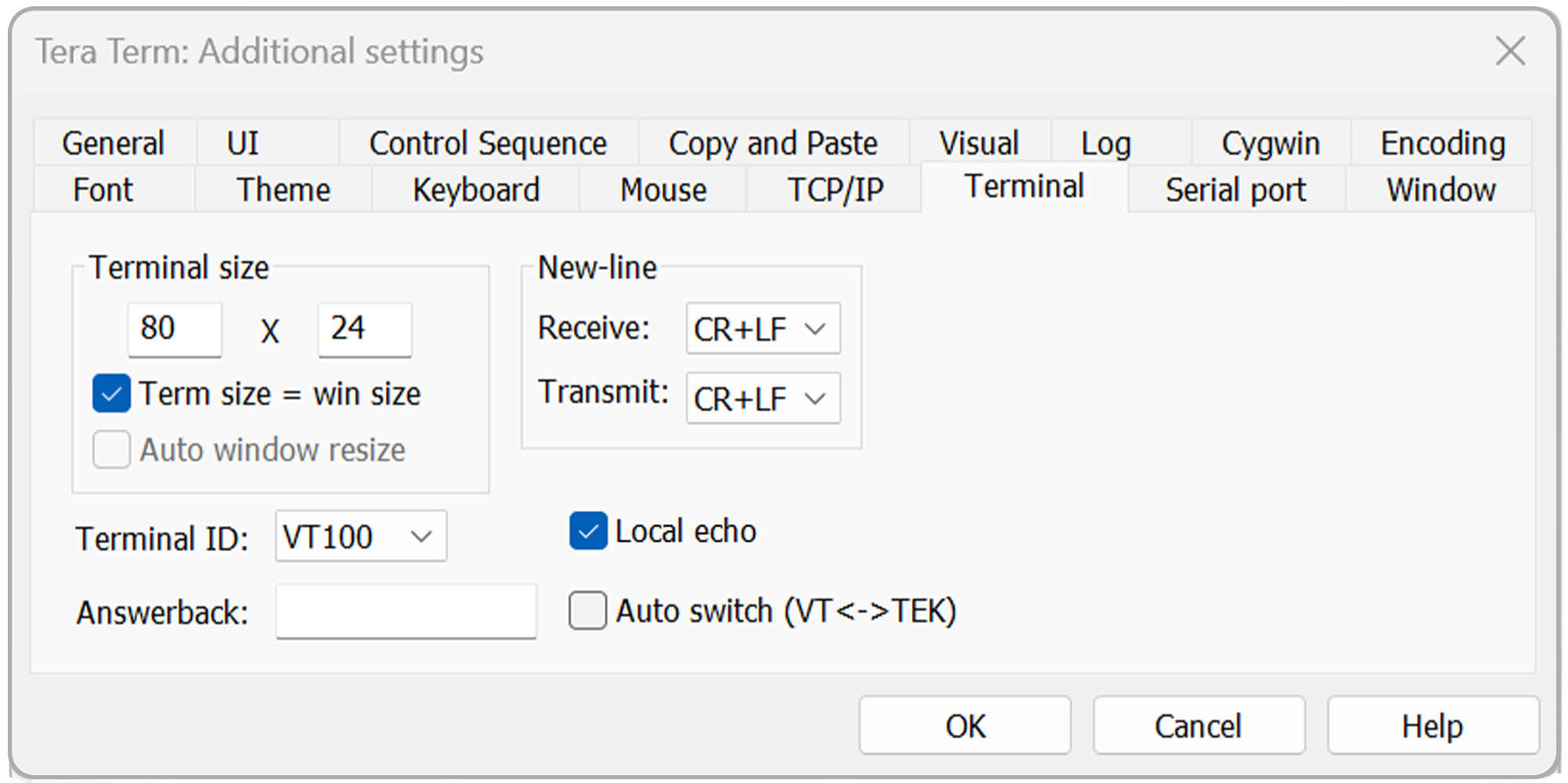
For bootloading, use:
- Receive: CR
- Transmit: CR
- Local echo: Checked
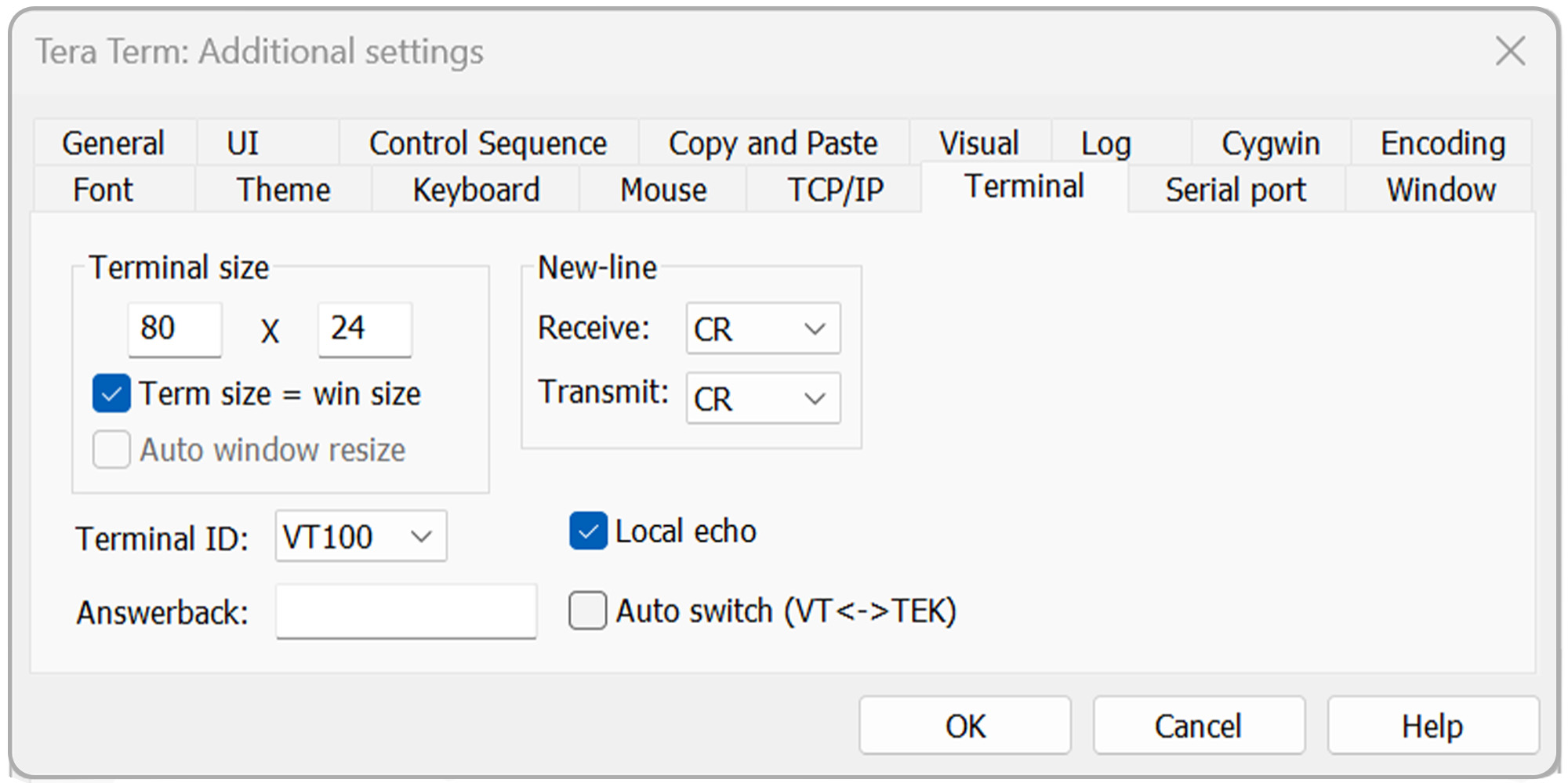
Click OK to continue.
To verify communications:
Send: S101
Press Enter.
The MX200 should return the vacuum measurement for channel 1.
Continue using Tera Term to send additional supported MX200 commands.
See Section 6, MX200 Communications Commands, for the available commands.
6 MX200 Communications Commands
Use the following table as a reference for communicating with the MX200.
When using The Fredericks Company Online Serial Terminal, supported commands can also be located and sent using the Command Assistant.
When using Tera Term, enter the desired command manually and press Enter.
For a detailed description of MX200 digital communications and individual commands, refer to Section 9, Digital Communications, of the MX200 Vacuum Controller Instruction Manual .
| 指挥部 | 采样输出 | 说明 |
|---|---|---|
| R1<cr> | XX<cr><lf> | 输出单位设置XX:PA=Pascal,TR=Torr,MB=mBar,TD=Torr十进制,MT=mTorr/Torr。 |
| W1XX<cr> | XX<cr><lf> | 设置单位为XX:PA=Pascal,TR=Torr,MB=mBar,TD=Torr十进制。 |
| S1XX<cr> | ppsee<cr><lf> | XX站的真空读数为ppsee |
| S1<cr> | XX=ppsee … XX=ppsee<cr><lf> | 每个通道XX的输出ppsee读数 |
| S2<cr> | NNNNNN<cr><lf> | 逻辑固件版本 |
| S3<cr> | NNNNNN<cr><lf> | 显示固件版本 |
| S4<cr> | XX=YY … XX=YY<cr><lf> | 输出站类型。XX=站号,YY=传感器类型。 |
| S5<cr> | XX=YY … XX=YY<cr><lf> | 输出设定点XX状态YY(ON=开,OF=关,00=未连接设定点) |
| S6<cr> | Televac … <cr><lf> | 输出所有设置信息 |
| RC1XX<cr> | Baa<cr><lf> | 输出通道XX的第一个校准点 |
| RC2XX<cr> | Baa<cr><lf> | 输出通道XX的第二个校准点 |
| RC3XX<cr> | Baa<cr><lf> | 输出通道XX的第三个校准点,如果点不存在则返回错误。 |
| RC4XX<cr> | Baa<cr><lf> | Output fourth calibration point for channel XX, return error if point doesn’t exist |
| WC1XXBaa<cr> | PPSEE<cr><lf> | 为通道XX设置第一个校准点 |
| WC2XXBaa<cr> | PPSEE<cr><lf> | Set second calibration point for channel XX |
| WC3XXBaa<cr> | PPSEE<cr><lf> | 为通道XX设置第三个校准点,如果点不存在则返回错误。 |
| WC4XXBaa<cr> | PPSEE<cr><lf> | Set fourth calibration point for channel XX, return error if point doesn’t exist |
| R2<cr> | 01 02 03 04 05 … <cr><lf> | 输出连接到MX200的通道号 |
| R3XX<cr> | HI<cr> or LO<cr><lf> | 输出XX站的HI/LO分辨率 |
| W3XX<cr> | HI<cr> or LO<cr><lf> | 切换XX站的HI/LO分辨率。 |
| R4<cr> | 01 02 03 04 05 … <cr><lf> | 输出设置在测量屏幕上显示的通道号。 |
| W4XX<cr> | ON<cr> or OF<cr><lf> | 从测量屏幕中添加或删除通道XX。 |
| R5XX<cr> | FbaaBAA<cr><lf> | 输出模拟输出格式,高低值 |
| W5XXF<cr> | F<cr><lf> | 设置通道XX模拟量输出格式为逐次线性(lin/dec=3,lin/dec 7E=4) |
| W5XX1baa<cr> | Fbaa<cr><lf> | 设置通道XX模拟量输出格式为线性:aaa=高值。 |
| W5XX2baaBAA<cr> | FbaaBAA<cr><lf> | 设置通道XX模拟量输出格式为线性:baa=高值,baa=低值。 |
| R6XX<cr> | GG<cr><lf> | 通道XX的输出气体设置 |
| W6XXGG<cr> | GG<cr><lf> | 将通道XX的气体类型设置为GG |
| R7Y<cr> | ppseePPSEEZZ<cr><lf> | 输出继电器Y开=ppsee,继电器Y关=PPSEE,通道ZZ分配给继电器Y。 |
| W7YppseePPSEEZZ<cr> | ppseePPSEE<cr><lf> | 将继电器Y打开设置为ppsee,将继电器Y关闭设置为PPSEE,将继电器Y设置为ZZ通道。 |
| R8<cr> | A<cr><lf> | Outputs the cold cathode mode, A (auto = 1, self = 2) |
| W8A<cr> | A<cr><lf> | 设置冷阴极模式,A(自动=1,自己=2)。 |
| R9<cr> | BB<cr><lf> | 返回冷阴极开关点值,BB(01~50)。 |
| W9BB<cr> | BB<cr><lf> | 设置冷阴极开关点值,BB(01~50)。 |
| R10<cr> | CD<cr><lf> | Returns the cold cathode status odd and even (on/off) C-odd, D-even (0 = off, 1 = on) |
| W10CD<cr> | CD<cr><lf> | Sets the cold cathode status odd and even (on/off) C-odd, D-even (0 = off, 1 = on) |
| C1TTTT<cr> | TTTT<cr><lf> | 设置波特率为TTTT |
| C2EE<cr> | EE<cr><lf> | 将地址设置为EE(00至99),仅限RS-485。 |
| C4N<cr> | N<cr><lf> | 将I/O改为N(RS-232=1,RS-485=2,USB=3)。 |
| C1<cr> | TTTT<cr><lf> | 输出波特率设置 |
| C2<cr> | EE<cr><lf> | RS-485的输出地址 |
| C4<cr> | N<cr><lf> | 输出通信类型(RS-232=1, RS-485=2, USB=3) |
| HM<cr> | M<cr><lf> | 返回测量画面 |
| RLR<cr> | SXXX<cr> | 输出泄漏率计算或通道1,单位为mTorr(S=符号,XXX=-999至999) |
| WLRX<cr> | X<cr><lf> | 打开或关闭通道1的泄漏率计算(0=关闭,1=打开) |
| WD_1XX<cr> | XX<cr><lf> | 恢复通道XX的通道设置默认值。 |
| WD_7X<cr> | X<cr><lf> | 恢复设定点X的设定点继电器默认值。 |
| WD_CXX<cr> | XX<cr><lf> | 恢复通道XX的校准默认值 |
| WD_G<cr> | D<cr><lf> | 恢复全局设置的默认值 |
| SN<cr> | NNNNNN<cr><lf> | 返回设备的六位数序列号,数值从00000000到999999。 |
| PG_LGC<cr> | Bootloader … <cr><lf> | 进入逻辑固件的引导加载器。 |
| PG_DSP<cr> | Bootloader … <cr><lf> | Enter the bootloader for the display firmware |