




1 Description
This application note explains how to configure serial communication between The Fredericks Company's digital electrolytic tilt measurement products and a Windows PC.
The recommended method is to use The Fredericks Company Online Serial Terminal . This browser-based tool allows users to communicate directly with compatible digital tilt measurement products using Google Chrome or Microsoft Edge, without installing additional terminal software.
Alternatively, users can communicate with their tilt measurement products using Tera Term, a free serial communications program. Tera Term must be installed on your Windows PC before following the corresponding instructions. If Tera Term is not installed, download the latest version from GitHub .
Back to Table of Contents2 Required Equipment, Tools, and Software
| Equipment/Tool | Part Number/Requirement |
|---|---|
| The Fredericks Company Digital Tilt Measurement Product | Compatible product with RS-232, RS-485, or UART/TTL serial communication |
| USB-to-Serial Converter | Compatible with the product's communication interface (RS-232, RS-485, or UART/TTL) |
| Connection Cable/Wiring | Appropriate cable or wiring for the tilt product and converter |
| Spannungsversorgung | Compatible with the tilt product's specified input voltage |
| Windows PC | PC with an available USB port |
| Google Chrome or Microsoft Edge | Online Serial Terminal method |
| Tera Term | Alternative serial terminal method |
3 Finding the COM Port
Before communicating with your tilt measurement product, you must identify the COM port assigned to your USB-to-serial converter. This COM port will be used when connecting through either The Fredericks Company Online Serial Terminal or Tera Term.
Verify the communication interface required by your tilt measurement product (RS-232, RS-485, or UART/TTL). Refer to the product datasheet for the appropriate communication settings and wiring requirements.
Connect your tilt measurement product to the appropriate USB-to-serial converter using the required cable or wiring.
Connect the USB-to-serial converter to an available USB port on your Windows PC.
Ensure the tilt measurement product is connected to the appropriate power supply according to its datasheet.
Windows should recognize the USB-to-serial converter and assign it to a COM port. If necessary, install the appropriate driver provided by the converter manufacturer.
Open the Start menu on your Windows PC.

Open the Device Manager.
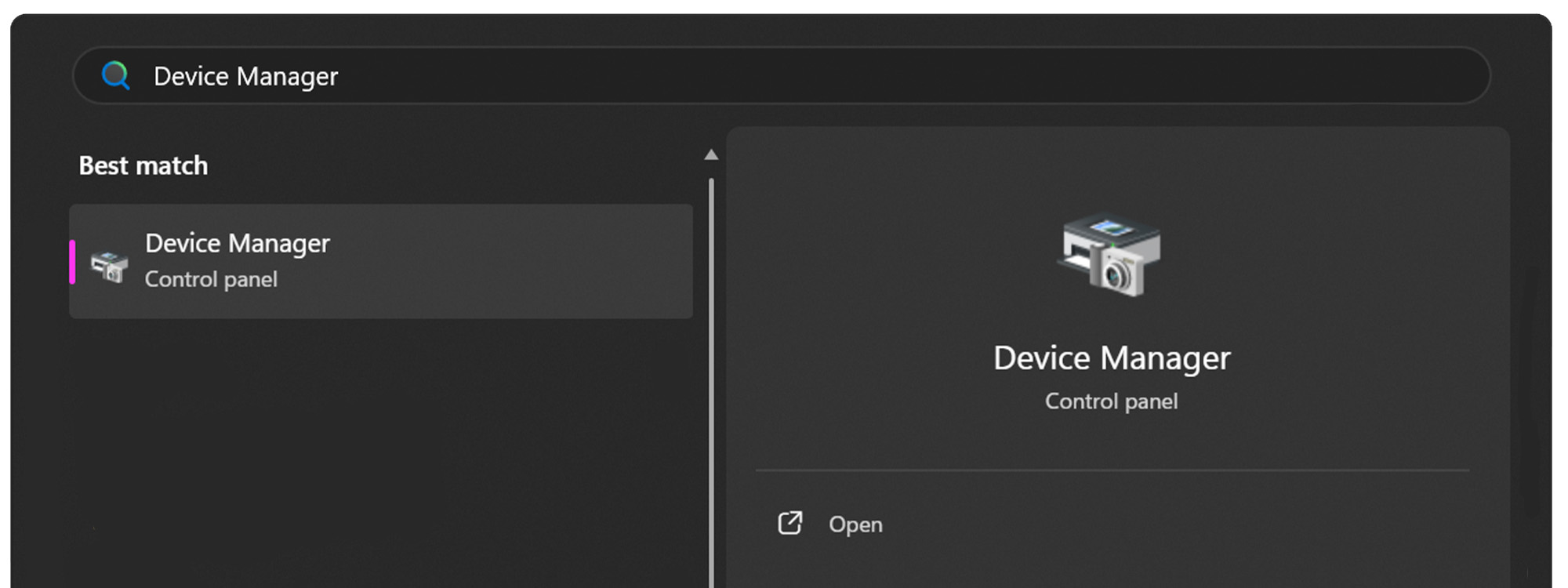
Expand the Ports (COM & LPT) dropdown.
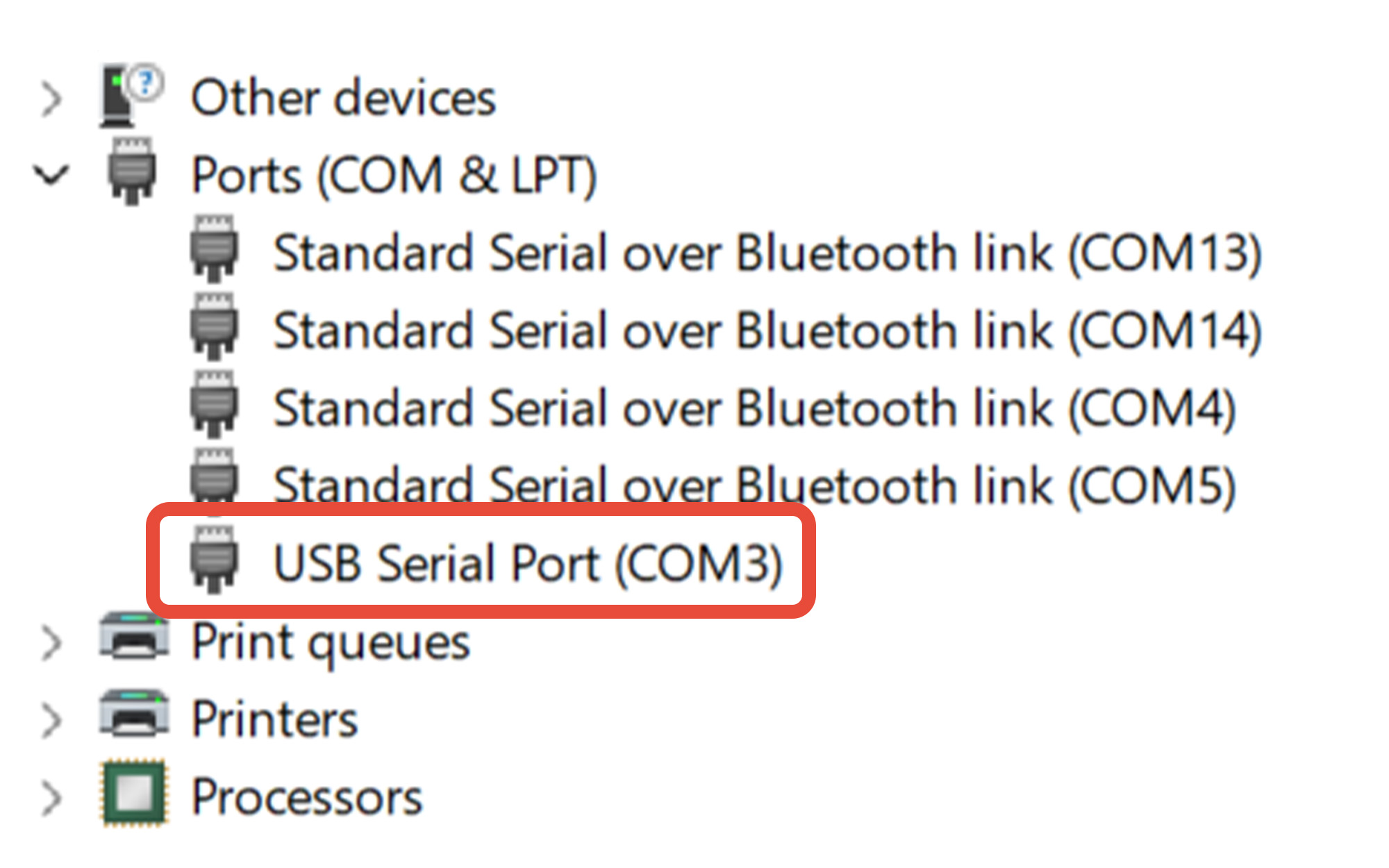
Determine the COM port assigned to your USB-to-serial converter. In this example, the converter is assigned to COM3.
If you’re unsure which COM port belongs to the USB-to-serial converter:
- Leave Device Manager open.
- Unplug the USB-to-serial converter from the PC.
- Watch which COM port disappears from the Ports (COM & LPT) list.
- Plug the converter back into the PC.
- The COM port that reappears is the port assigned to the USB-to-serial converter.
Remember this COM port number. You will select it when connecting to your tilt measurement product using either the Online Serial Terminal or Tera Term.
4 Using The Fredericks Company Online Serial Terminal
Using Google Chrome or Microsoft Edge, visit The Fredericks Company Online Serial Terminal .
Ensure your tilt measurement product is powered on and connected to your Windows PC using the appropriate USB-to-serial converter.
Select your tilt measurement product from the Product dropdown menu.
Select the Baud Rate specified in your tilt measurement product's datasheet.
For this example, 9600 baud is used.
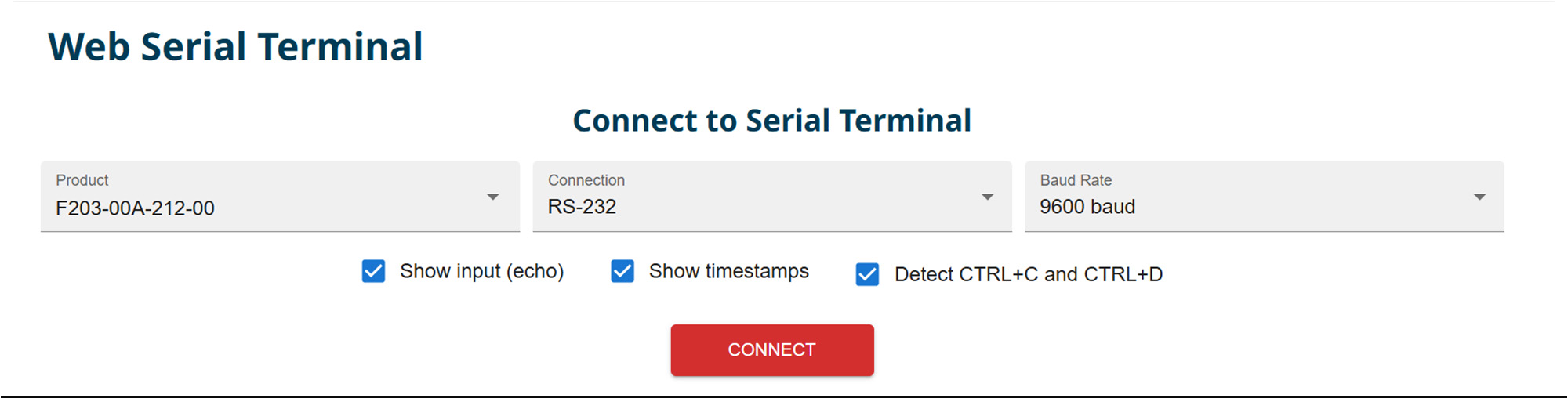
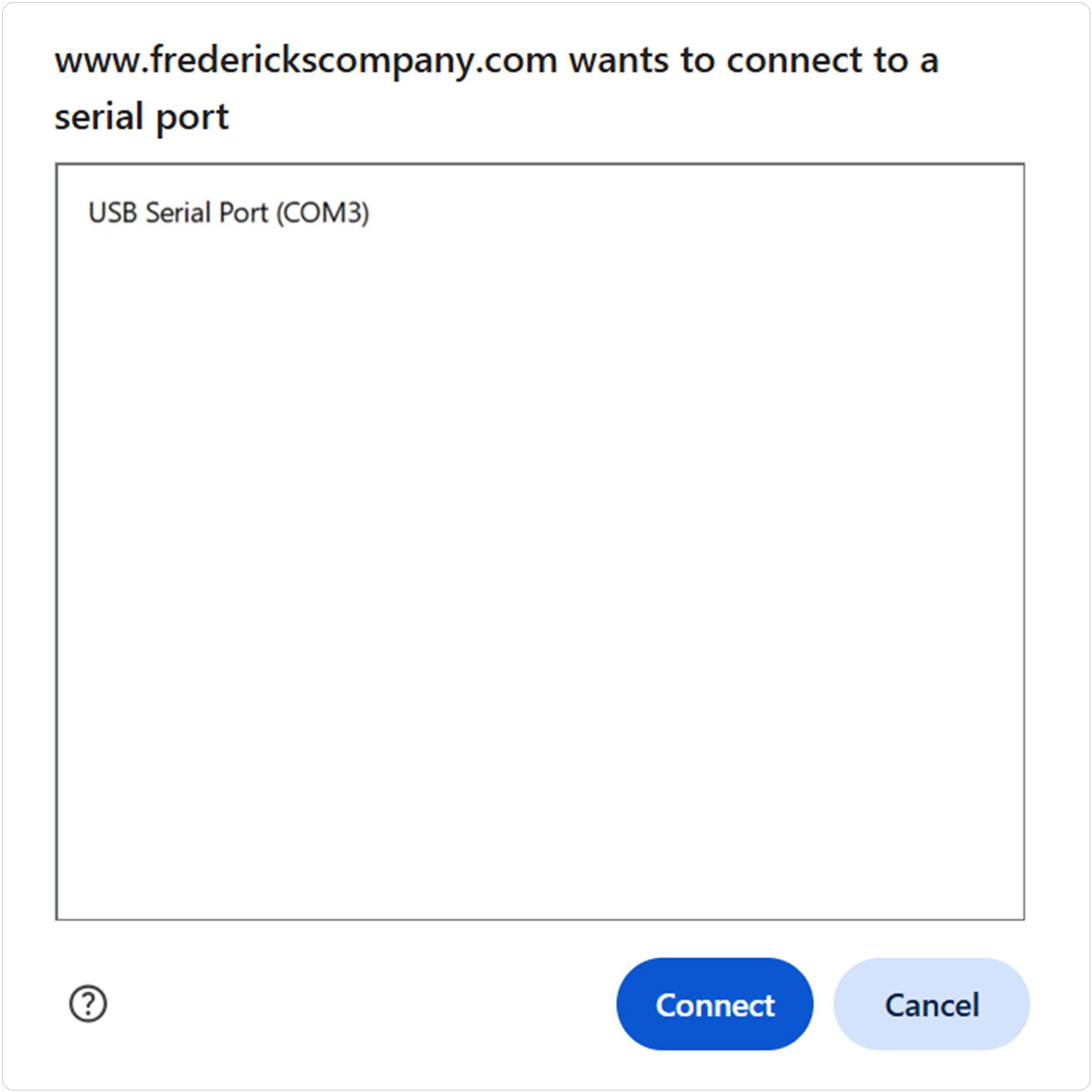
Click Connect to open the browser's serial-port selection window.
Select the COM port assigned to your USB-to-serial converter, then click Connect.
In this example, COM3 is selected.
If you are unsure which COM port to select, refer to Section 3, Finding the COM Port .
Once connected, use the Command Assistant to locate and send commands supported by your tilt measurement product.
Select a command from the Command Assistant and follow the on-screen instructions. Alternatively, enter a supported serial command manually in the terminal input field.
Refer to the product datasheet for the complete list of supported commands.
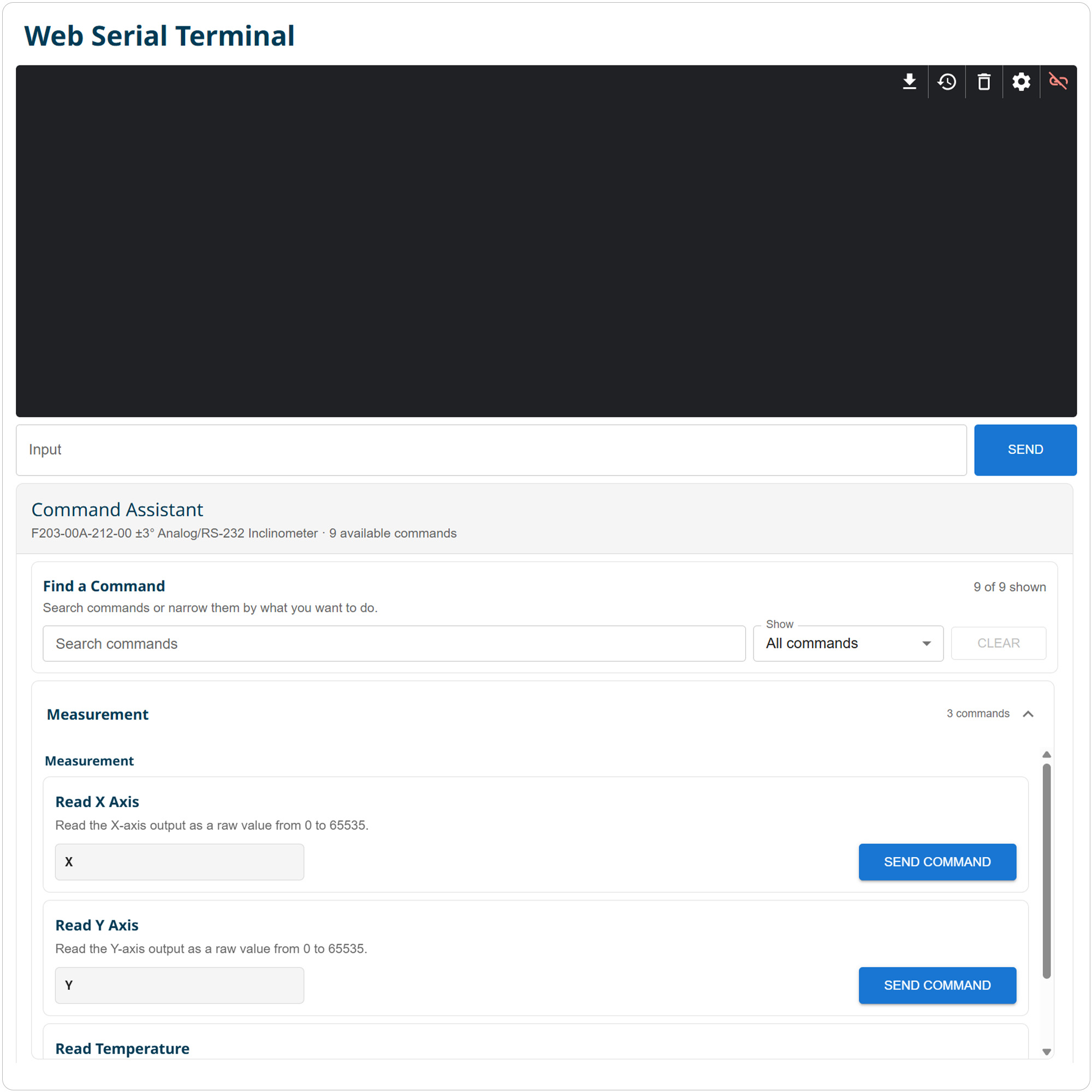
Verify that your tilt measurement product responds to the command.
If you receive a valid response, communication has been established successfully.
You can continue sending commands through the Command Assistant or enter commands manually as needed.
5 Using Tera Term
Open Tera Term on your Windows PC.
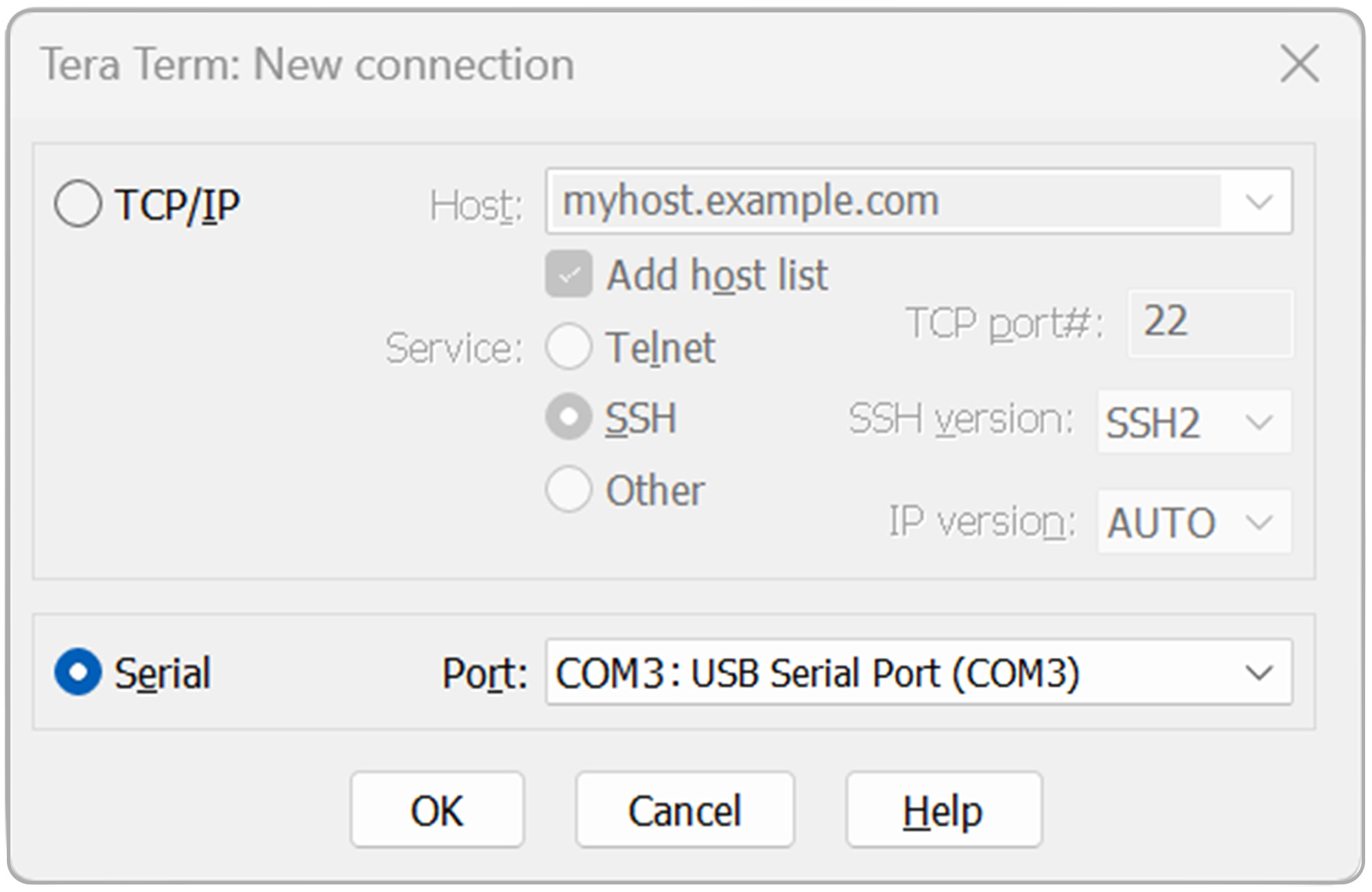
Select Serial, then select the COM port assigned to your USB-to-serial converter from the Port dropdown.
Click OK to continue.
In this example, COM3 is selected.
If you’re unsure which COM port to select, refer to Section 3, Finding the COM Port .
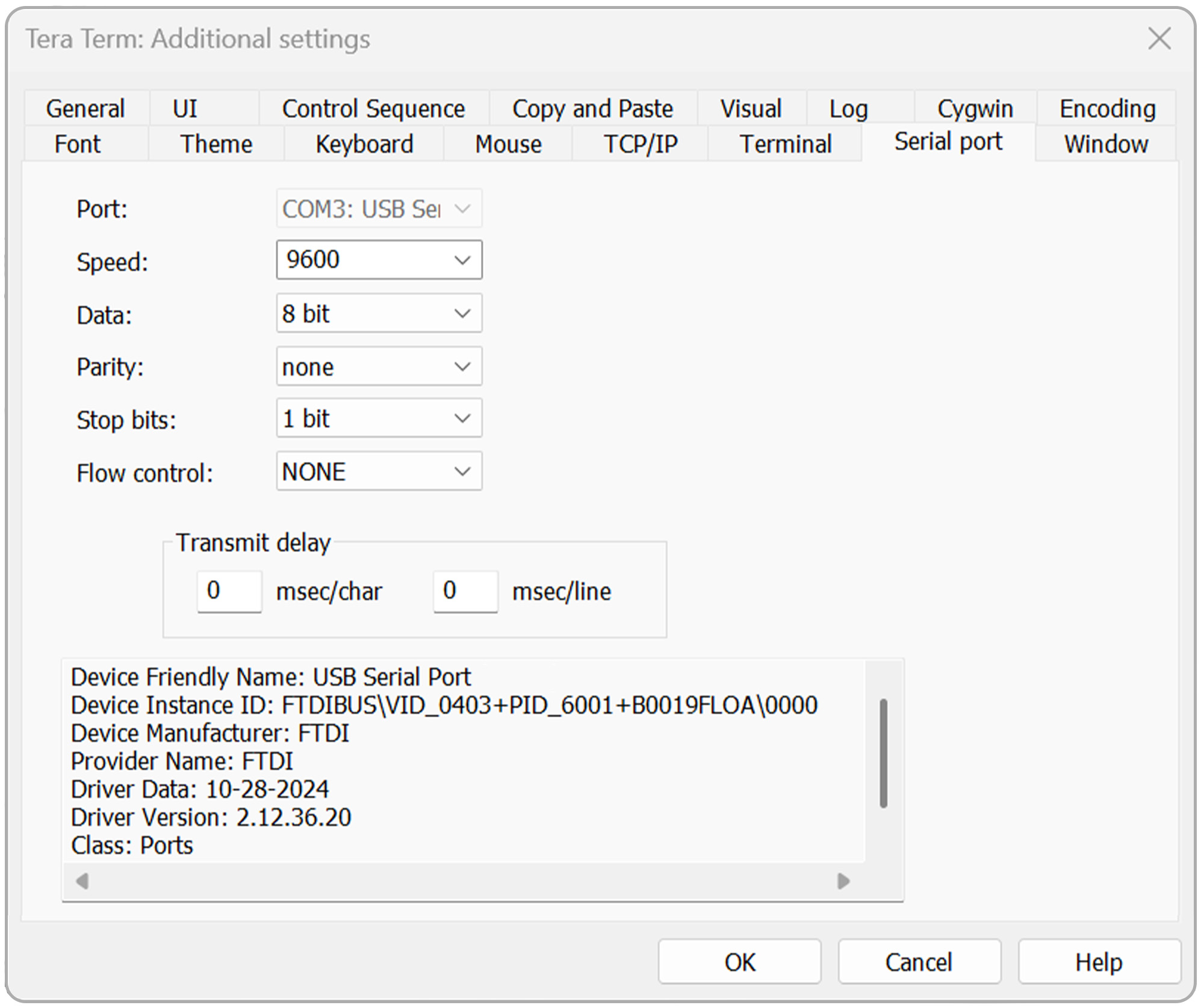
Open the Setup menu, then select Serial port.
Verify that the serial port settings are configured as follows:
- Baud rate: 9600 (or as specified in your product datasheet)
- Data: 8 bit
- Parity: none
- Stop: 1 bit
- Flow control: NONE
- Transmit delay: 0 msec/char, 0 msec/line
Click OK to continue.
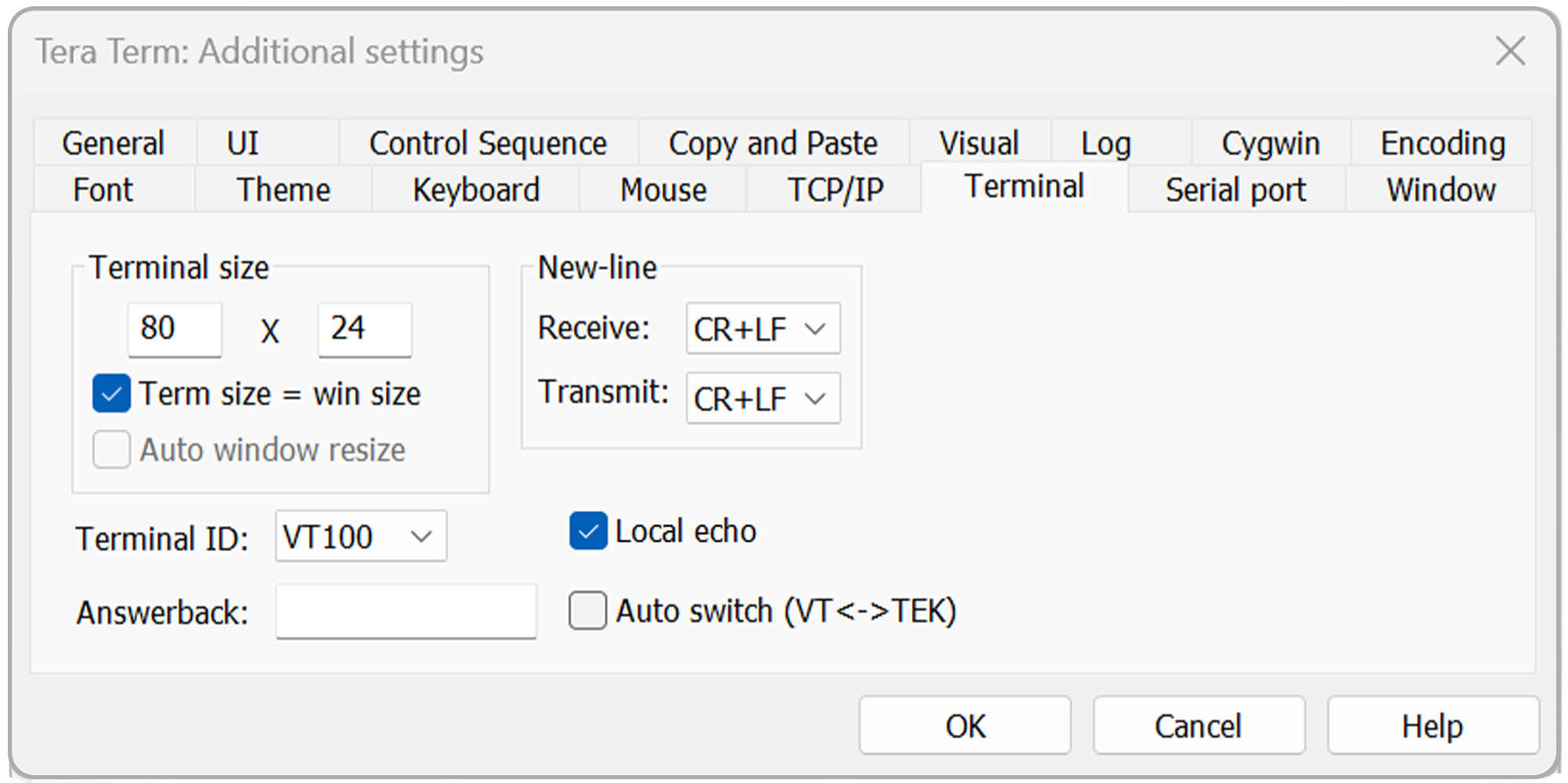
Open the Setup menu again, then select Terminal.
Under the New-line settings, configure the following:
- Receive: CR+LF
- Transmit: CR+LF
- Local echo: Checked
Click OK to continue.
To verify communication with your tilt measurement product, enter a supported command in the Tera Term terminal window and press Enter.
The product should return a response based on the command entered.
Refer to the product datasheet for the complete list of supported commands.
Once communication has been established, continue using Tera Term to send additional supported commands to your tilt measurement product.