



1 Description
宗旨
This application note explains the basic process for creating and mapping Class 3 Explicit Message connections in the Rockwell Automation Studio 5000 development environment for CompactLogix Programmable Logic Controllers (PLCs).
These connections allow the PLC to communicate with a Televac® EthernetIP device to exchange data and set parameters remotely.
Before You Begin
Before creating a Class 3 connection:
- Load the appropriate EDS file into the PLC project.
- Add the Televac® Ethernet module to the project.
Refer to Televac® Application Note 3016 for instructions on loading the EDS file and adding a new Ethernet module.
Refer to the applicable Televac® EthernetIP product instruction manual for:
- Class 1 and Class 3 connection details.
- The complete ADI table, including data instance, name, array length, access, and description.
- IP address configuration information.
2 Configure a Class 3 GET Connection
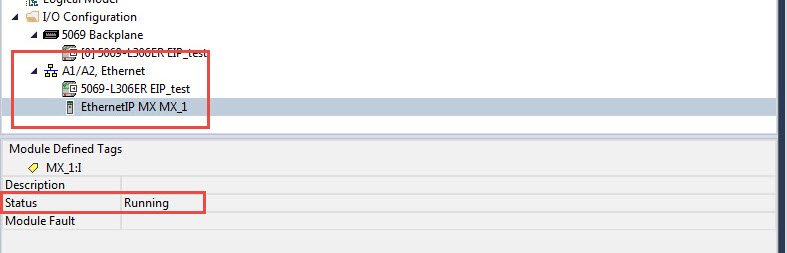
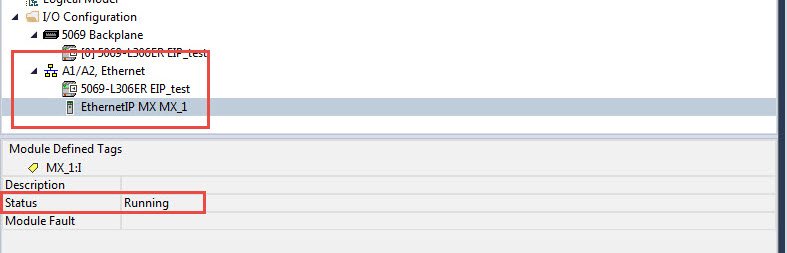
Verify that the appropriate EDS file has been loaded and that the Televac® Ethernet module has been successfully added to the Studio 5000 project.
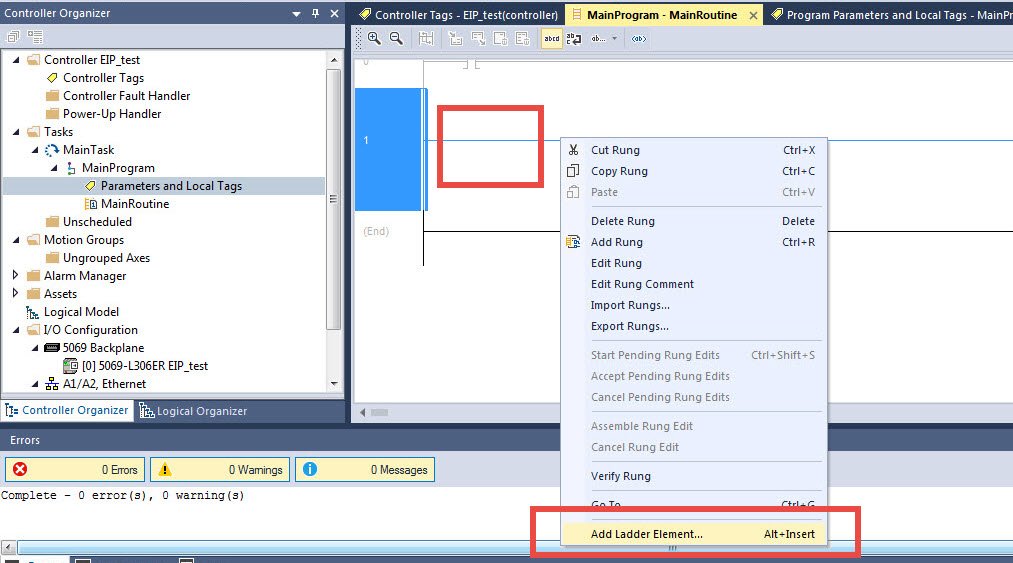
Select the rung where the message will be added. Right-click the rung and select Add Ladder Element... from the menu.
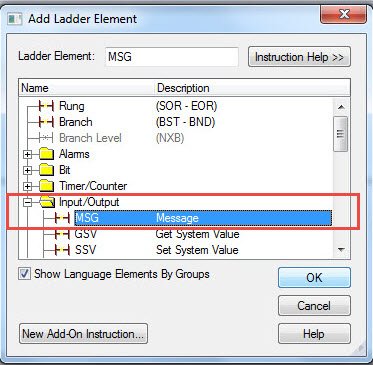
Locate the Input/Output folder and select MSG from the list.
Right-click the box within the MSG instruction and select New Tag....
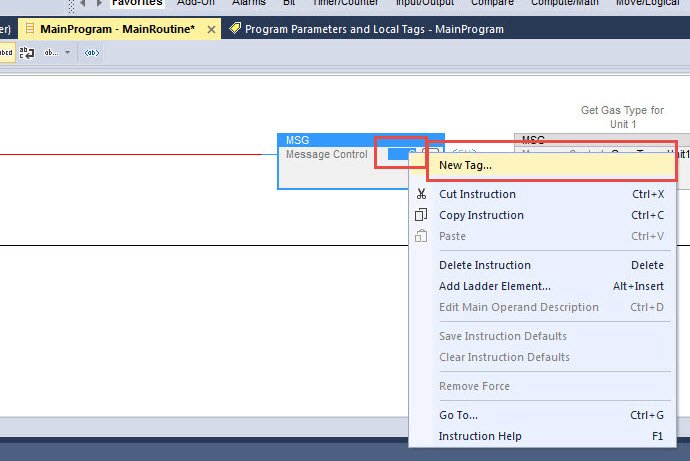
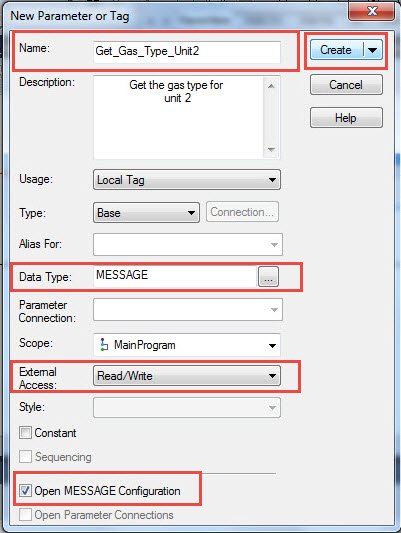
Provide a name for the tag and configure the following settings:
- Set Data Type to MESSAGE.
- Set External Access based on the applicable ADI information in the product manual.
- Select Open MESSAGE Configuration.
When finished, select Create.
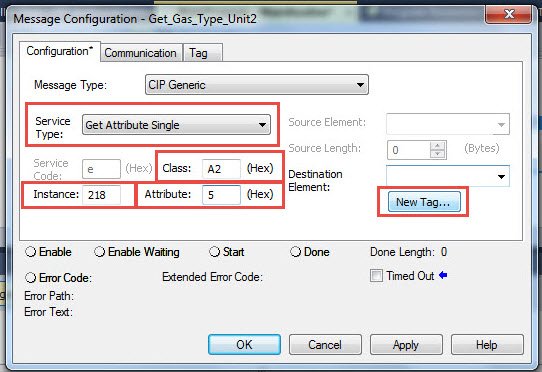
In the Message Configuration window:
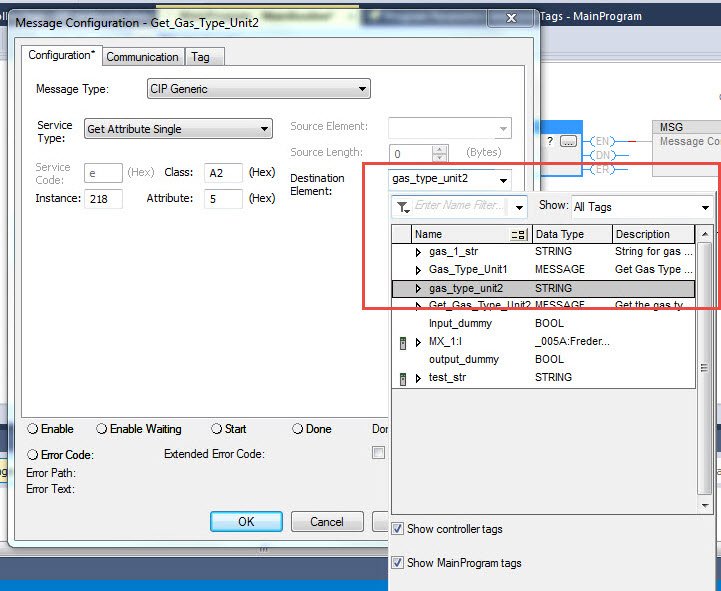
- Set Service Type to Get Attribute Single.
- Set Class to A2.
- Set Attribute to 5.
- Refer to the applicable product ADI table to determine the correct Instance.
The Class and Attribute values are the same for all Televac® EthernetIP Class 3 connections.
In the example shown, Gas Type for Unit 2 on the EthernetIP Gateway uses Instance 218.
Select New Tag... for the Destination Element, where the received data will be stored locally.
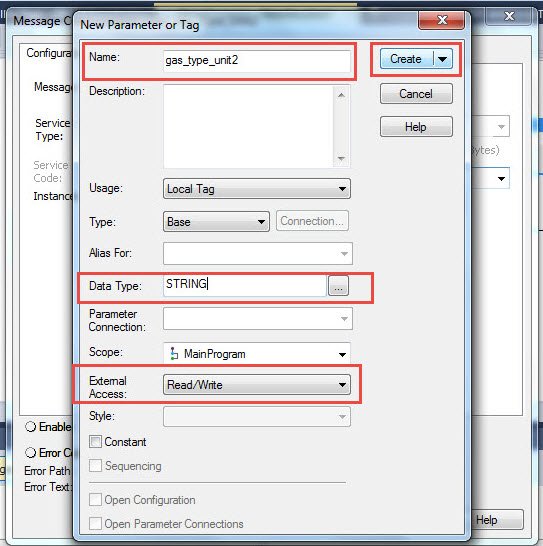
Create a new local tag to store the received parameter data.
- Use REAL for pressure data.
- Use STRING for all other data.
- Set External Access based on the GET/SET information in the applicable ADI table.
When finished, select Create.
Select the newly created local tag in the Destination Element field.
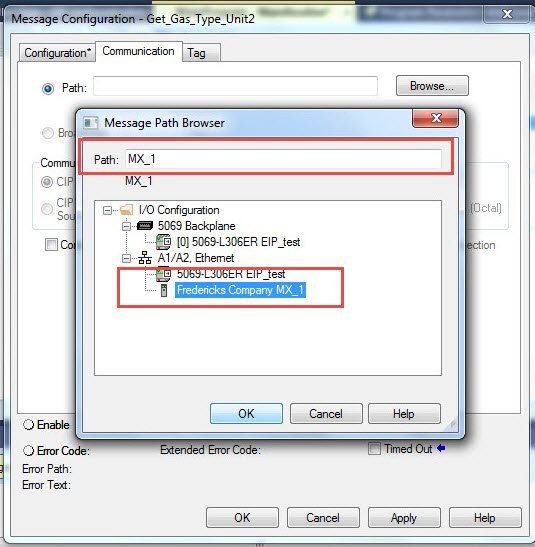
Open the Communication tab and select the Televac® Ethernet module.
Verify that the module name appears in the Path field.
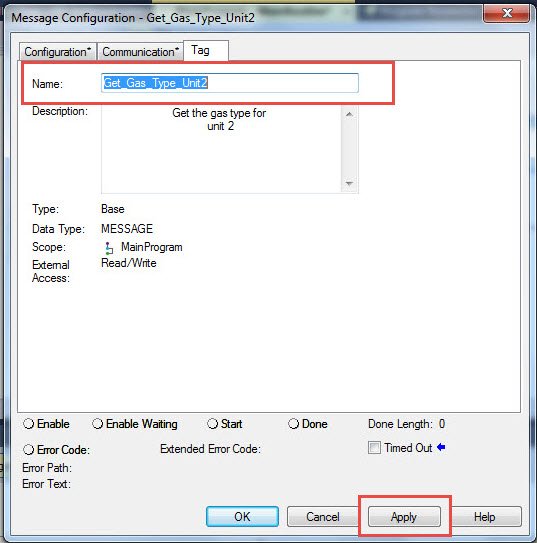
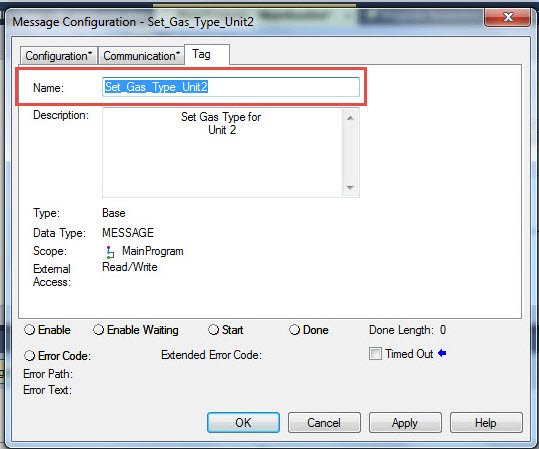
Open the Tag tab and verify that the Name matches the message tag created in Section 2.5.
Select Apply to save the changes, then select OK to exit the configuration window.
The GET MSG ladder instruction is now configured and ready to receive data from the Televac® Ethernet module.
3 Configure a Class 3 SET Connection
Verify that the appropriate EDS file has been loaded and that the Televac® Ethernet module has been successfully added to the Studio 5000 project.
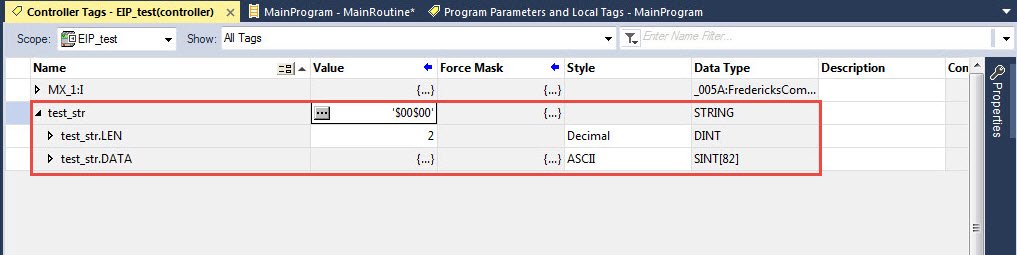
Create a new STRING type tag in the Controller Tags table.
Set the String Length to match the Array Size of the instance being written, as specified in the applicable product ADI table.
In the example shown, the Gas Type parameter for the EthernetIP Gateway has an array size of 2 bytes.
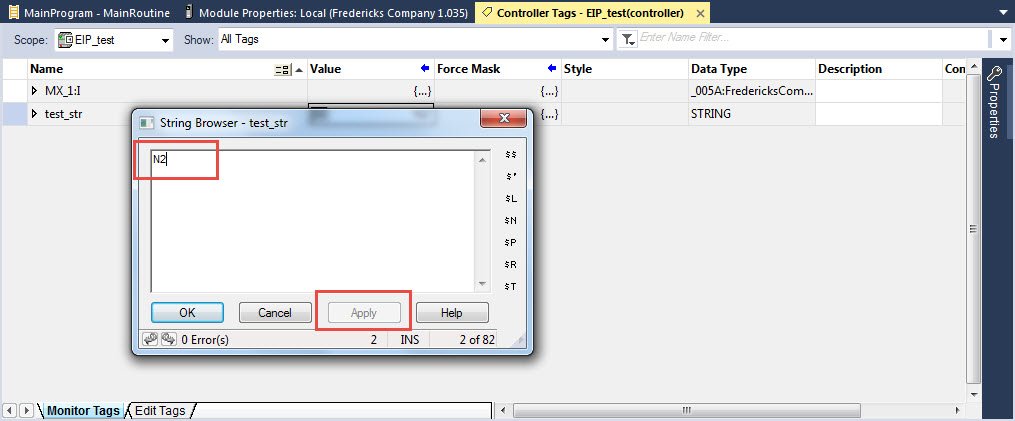
Set the STRING tag to the desired parameter value.
In the example shown, the string is set to N2 for nitrogen gas.
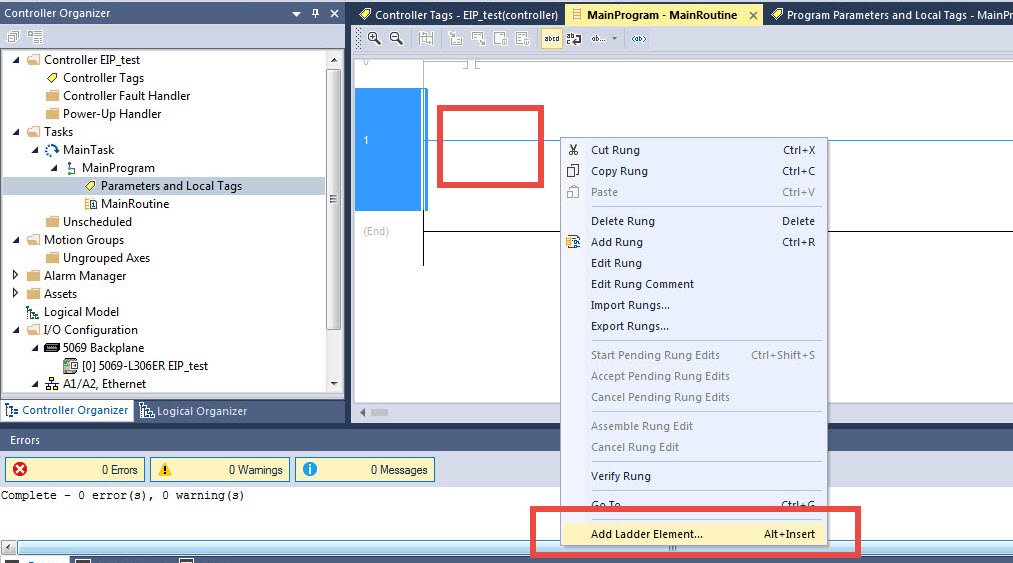
Select the rung where the message will be added. Right-click the rung and select Add Ladder Element... from the menu.
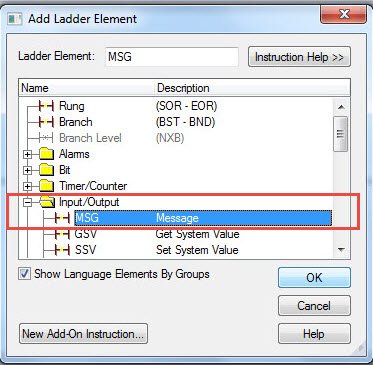
Locate the Input/Output folder and select MSG from the list.
Right-click the box within the MSG instruction and select New Tag....
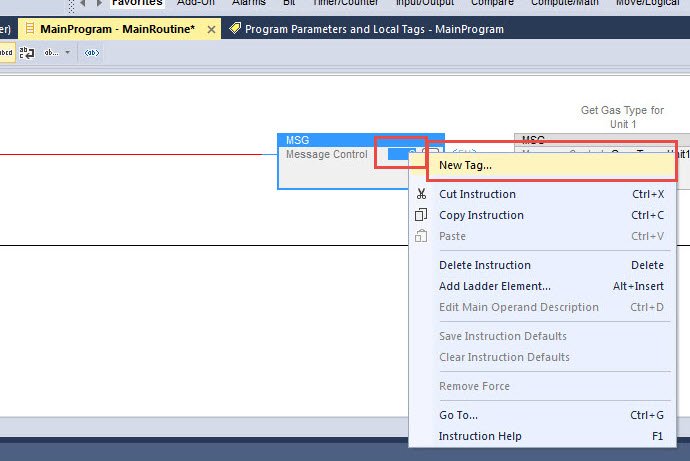
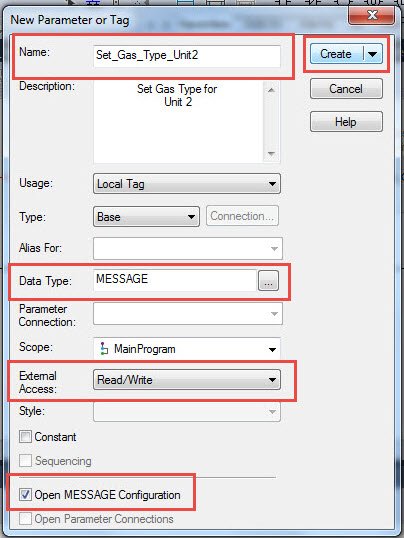
Provide a name for the tag and configure the following settings:
- Set Data Type to MESSAGE.
- Set External Access based on the applicable ADI information in the product manual.
- Select Open MESSAGE Configuration.
When finished, select Create.
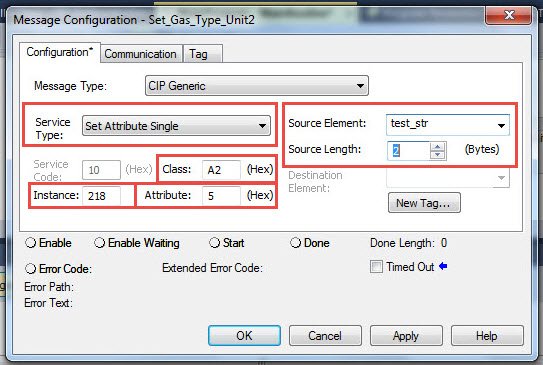
In the Message Configuration window:
- Set Service Type to Set Attribute Single.
- Set Class to A2.
- Set Attribute to 5.
- Refer to the applicable product ADI table to determine the correct Instance.
- Set the Source Element and Length to the tag created in Section 3.2.
The Class and Attribute values are the same for all Televac® EthernetIP Class 3 connections.
In the example shown, Gas Type for Unit 2 on the EthernetIP Gateway uses Instance 218.
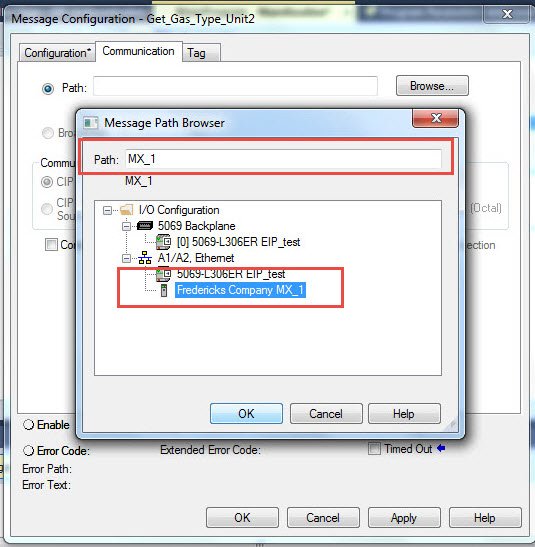
Open the Communication tab and select the Televac® Ethernet module.
Verify that the module name appears in the Path field.
Open the Tag tab and verify that the Name matches the message tag created in Section 3.7.
Select Apply to save the changes, then select OK to exit the configuration window.
The SET MSG ladder instruction is now configured and ready to send data to the Televac® Ethernet module.