



1 Description
This application note explains the process for interfacing and communicating with an MX200 Vacuum Controller from a Windows PC.
The recommended method is to use The Fredericks Company Online Serial Terminal. The Online Serial Terminal communicates directly with the MX200 through a supported web browser and allows MX200 serial commands to be sent without installing additional communications software.
USB communication is recommended when connecting the MX200 directly to a Windows PC.
Alternatively, you can use the Tera Term serial communications program. Tera Term must be installed on your computer before following these instructions. If you do not have Tera Term installed, download the latest version from GitHub .
Back to Table of Contents2 Required Equipment, Tools, and Software
| Equipment/Tool | Part Number/Requirement |
|---|---|
| MX200バキュームコントローラ | 2-7900-034, 2-7900-037, or 2-7900-038 |
| USB Cable | USB Type A to USB Type B cable |
| Windows PC | PC with an available USB port |
| Google Chrome or Microsoft Edge | Online Serial Terminal method |
| Tera Term | Manual method only |
3 Finding the COM Port
On the MX200, press the Home button and navigate to:
Global Setup → Communications → Interface
Verify that USB is selected.
Then, navigate to:
Global Setup → Communications → Settings
Remember the baud rate. You will select it when connecting to the MX200 using either the Online Serial Terminal or Tera Term.
Connect the MX200 to your Windows PC using a USB Type A to USB Type B cable.
Connect the USB Type B connector to the USB port on the back of the MX200 and the USB Type A connector to an available USB port on your Windows PC.
Windows will automatically recognize the MX200 and assign it to a COM Port.
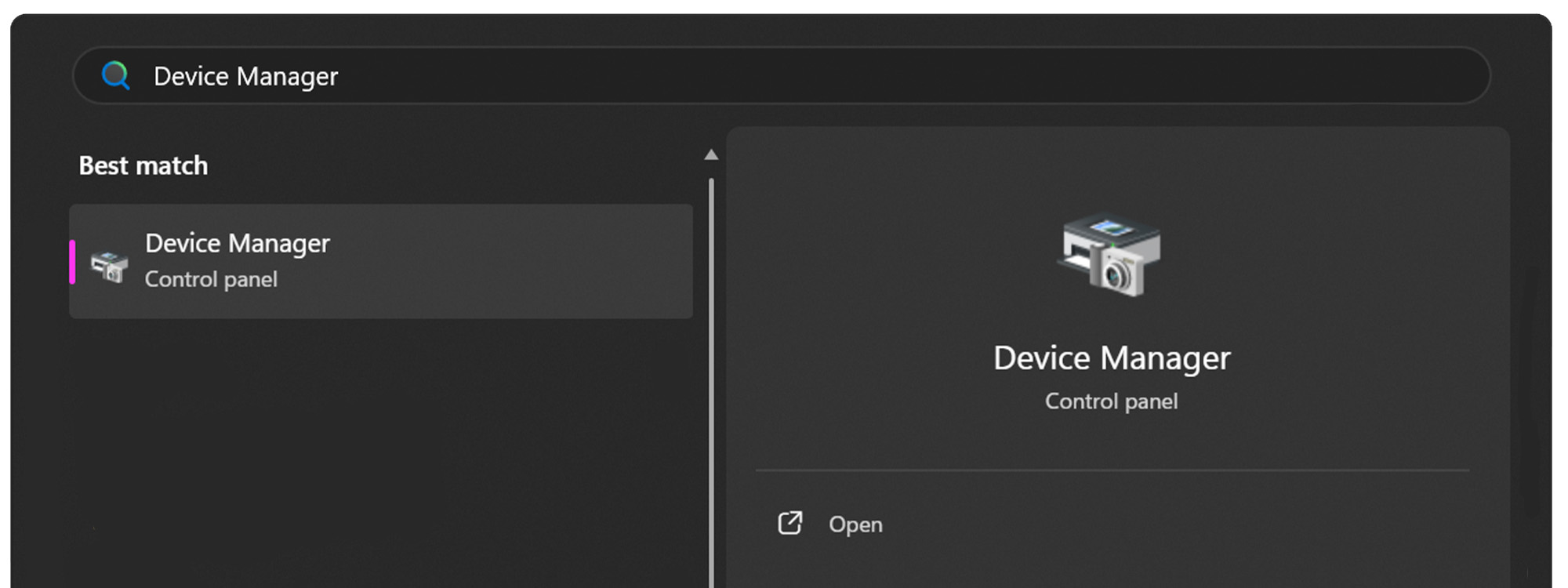
Open the Start Menu on your Windows PC.

Open the Device Manager.
Expand the Ports (COM & LPT) dropdown.
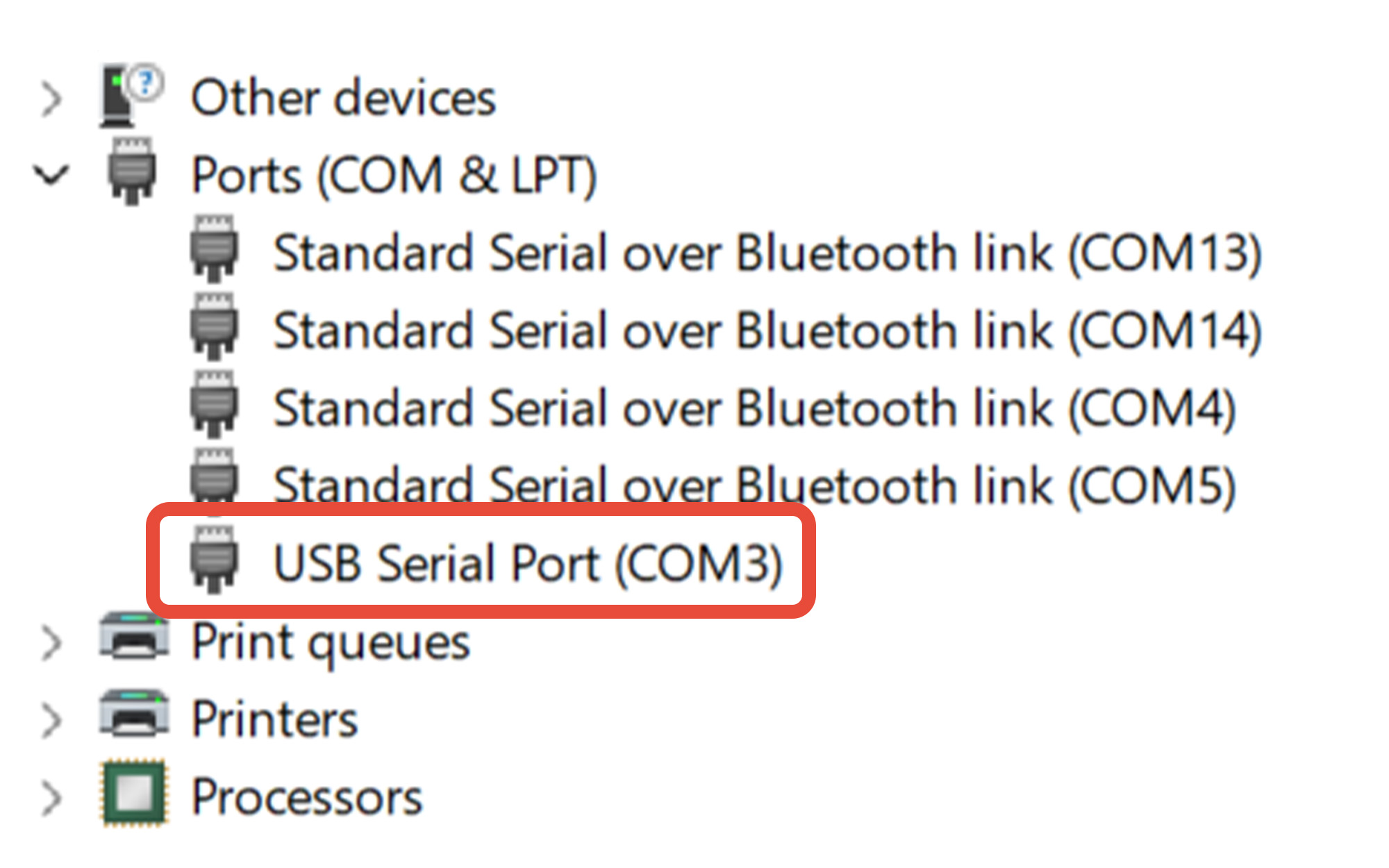
Determine the COM port assigned to the MX200. In this example, the MX200 is assigned to COM3.
If you're unsure which COM port belongs to the MX200:
- Leave Device Manager open.
- Disconnect the USB cable from the PC.
- Watch which COM port disappears from the Ports (COM & LPT) list.
- Reconnect the USB cable.
- The COM port that reappears is the port assigned to the MX200.
Remember this COM port number. You will select it when connecting to the MX200 using either the Online Serial Terminal or Tera Term.
4 Using The Fredericks Company Online Serial Terminal
Using Google Chrome or Microsoft Edge, visit The Fredericks Company Online Serial Terminal.
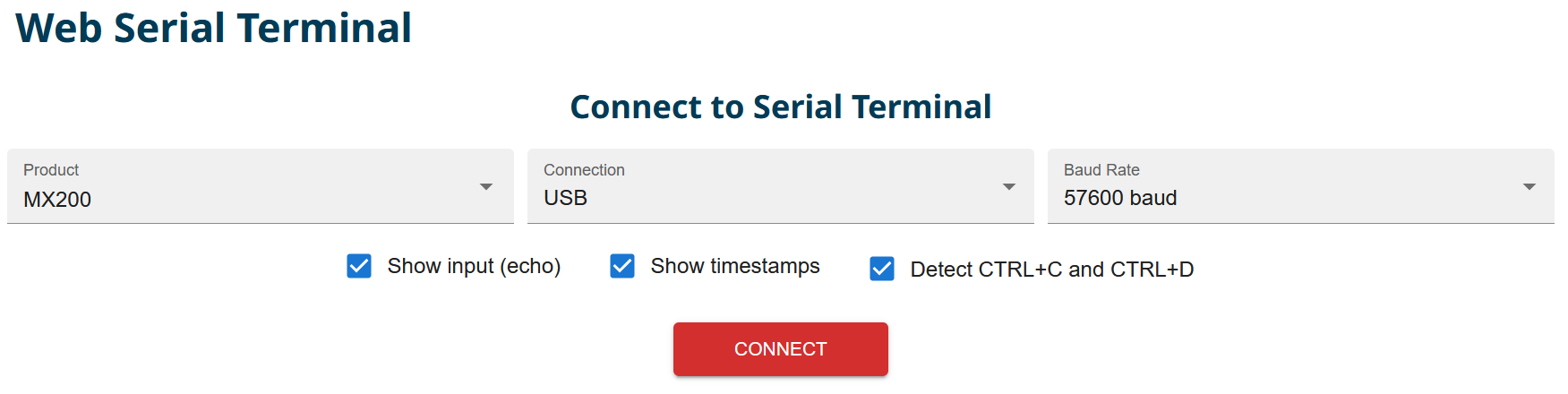
Select MX200 from the Product dropdown and USB from the Connection dropdown. Select the baud rate configured on your MX200. In this example, 57600 baud is used.
Click CONNECT to open the serial-port selection window.
Select the COM port assigned to your MX200, then click Connect.
If you are unsure which COM port to select, see Section 3, Finding the COM Port.
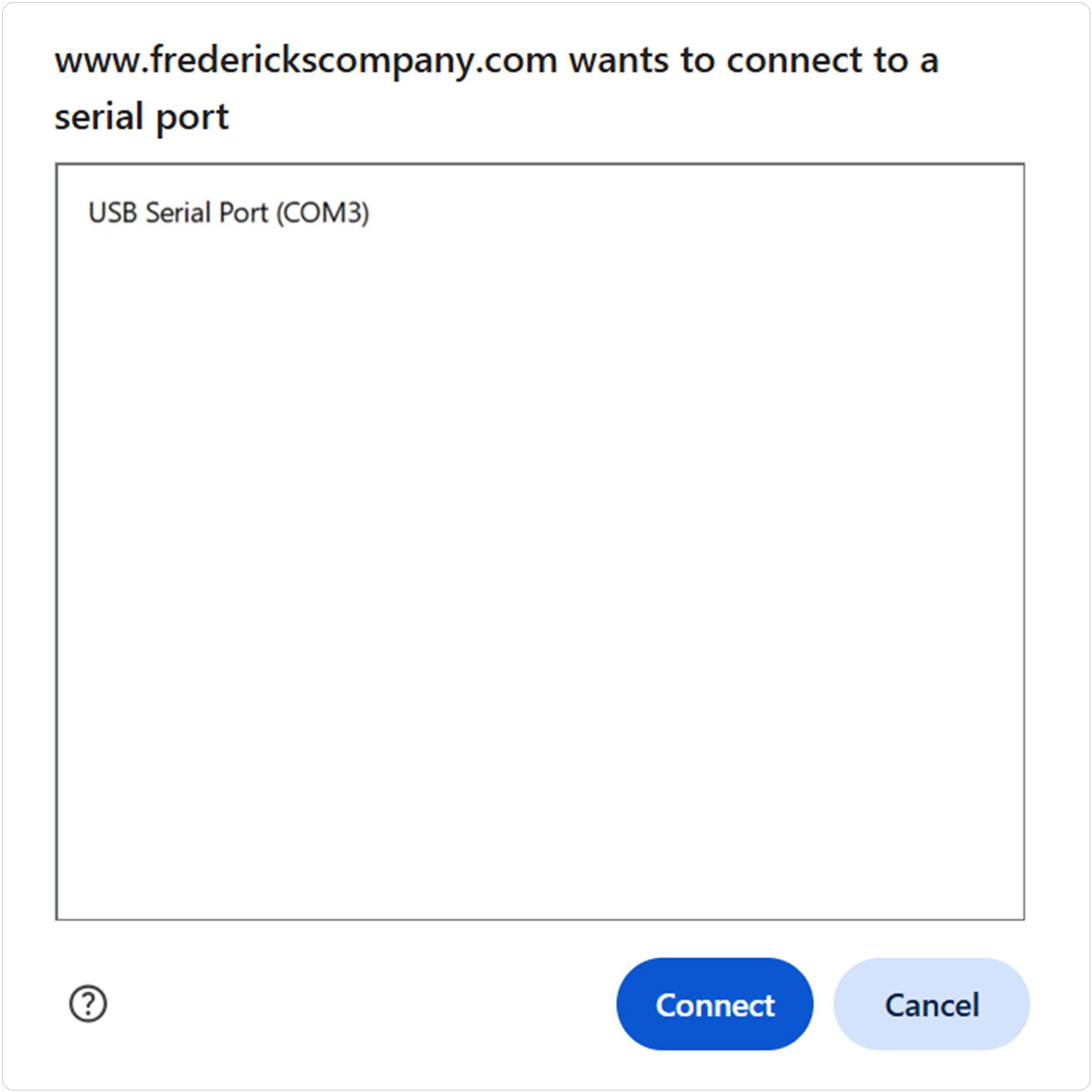
Use the terminal input field or the Command Assistant to send a test command to the MX200. For example, to read the vacuum measurement from channel one:
Send: S101
Continue using the Command Assistant to locate and send additional supported MX200 commands or enter commands manually in the terminal.
See Section 6, MX200 Communications Commands, for the available commands.
5 Using Tera Term
Open Tera Term on your Windows PC.
Select Serial, then select the COM port assigned to your MX200 from the Port dropdown.
Click OK to continue.
If you are unsure which COM port to select, see Section 3, Finding the COM Port.
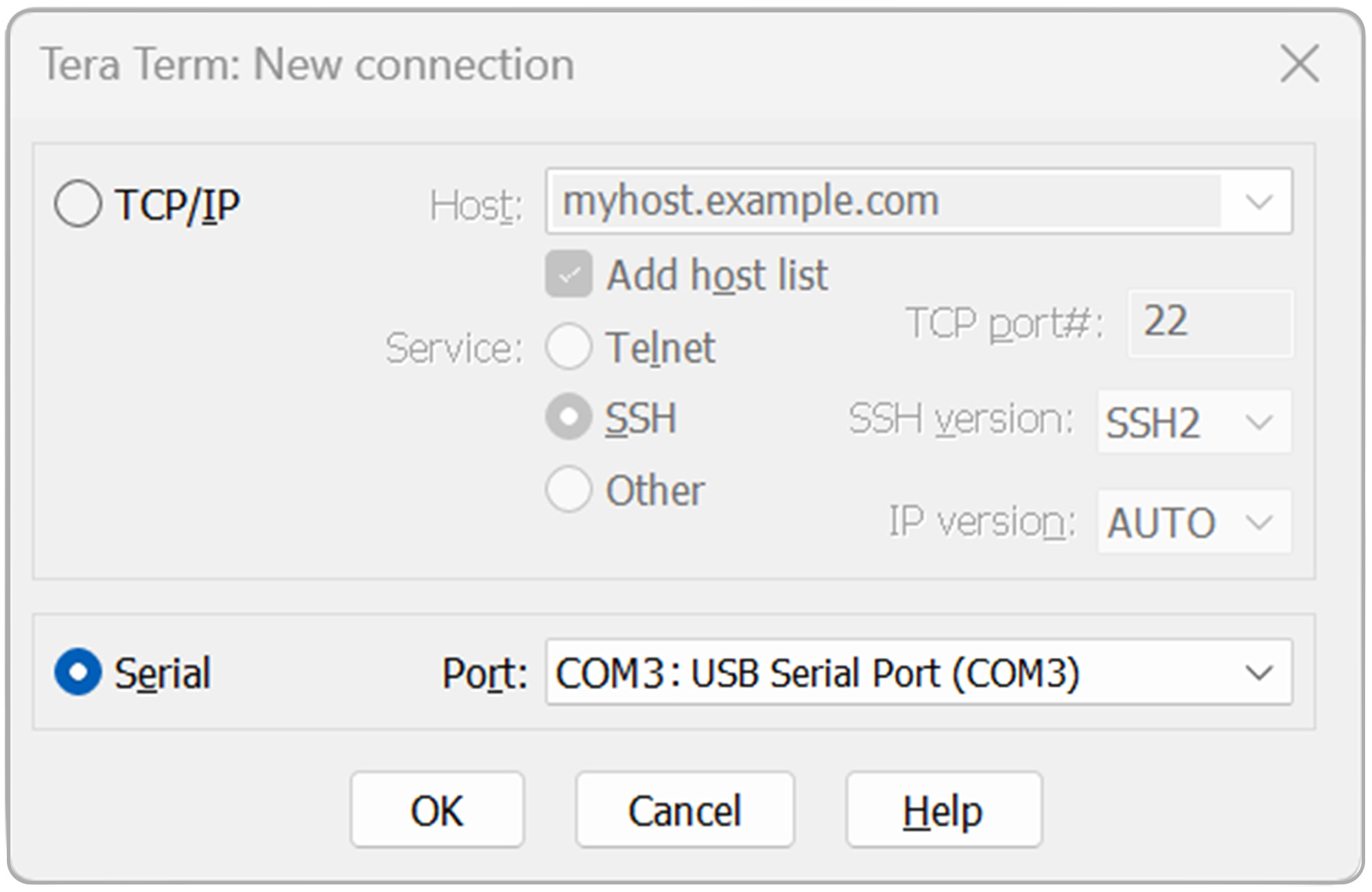
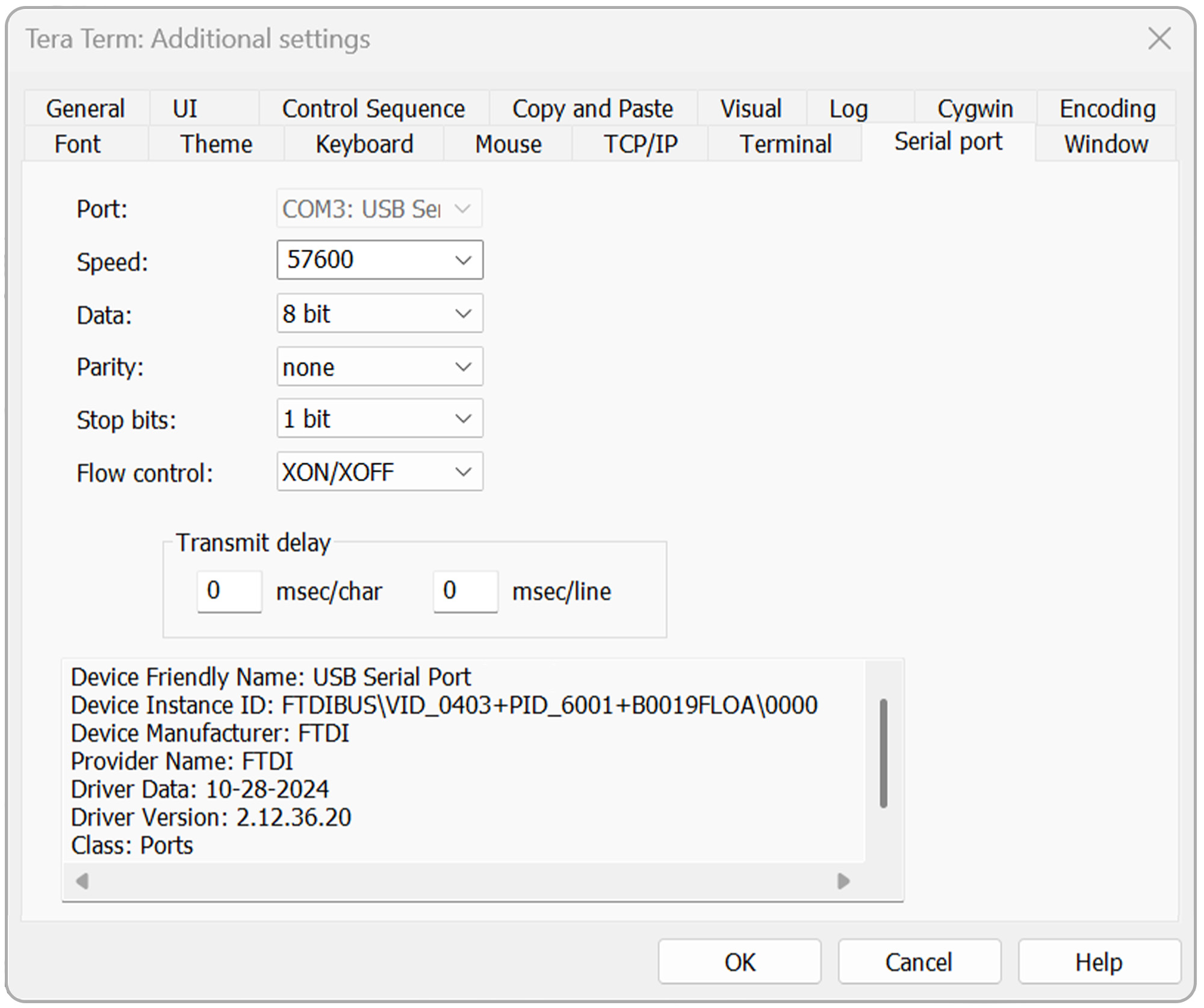
Open the Setup menu, then select Serial port.
Verify that the serial port settings are configured as follows:
- Baud rate: Baud rate configured on the MX200
- Data: 8 bit
- Parity: none
- Stop: 1 bit
- Flow control: Xon/Xoff
- Transmit delay: 0 msec/char, 0 msec/line
Click OK to continue.
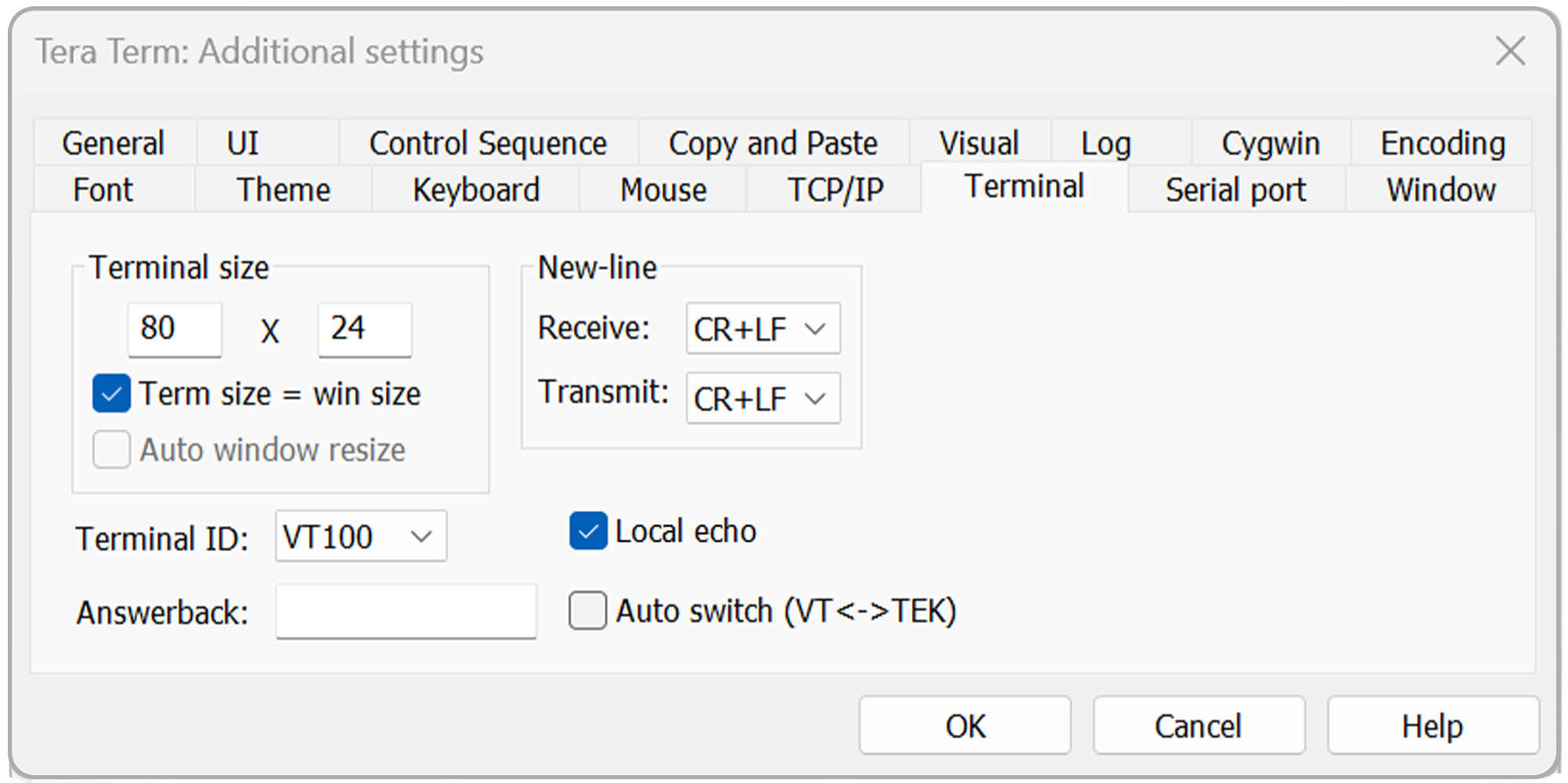
Open the Setup menu again, then select Terminal.
For standard communications, configure:
- Receive: CR+LF
- Transmit: CR+LF
- Local echo: Checked
For bootloading, use:
- Receive: CR
- Transmit: CR
- Local echo: Checked
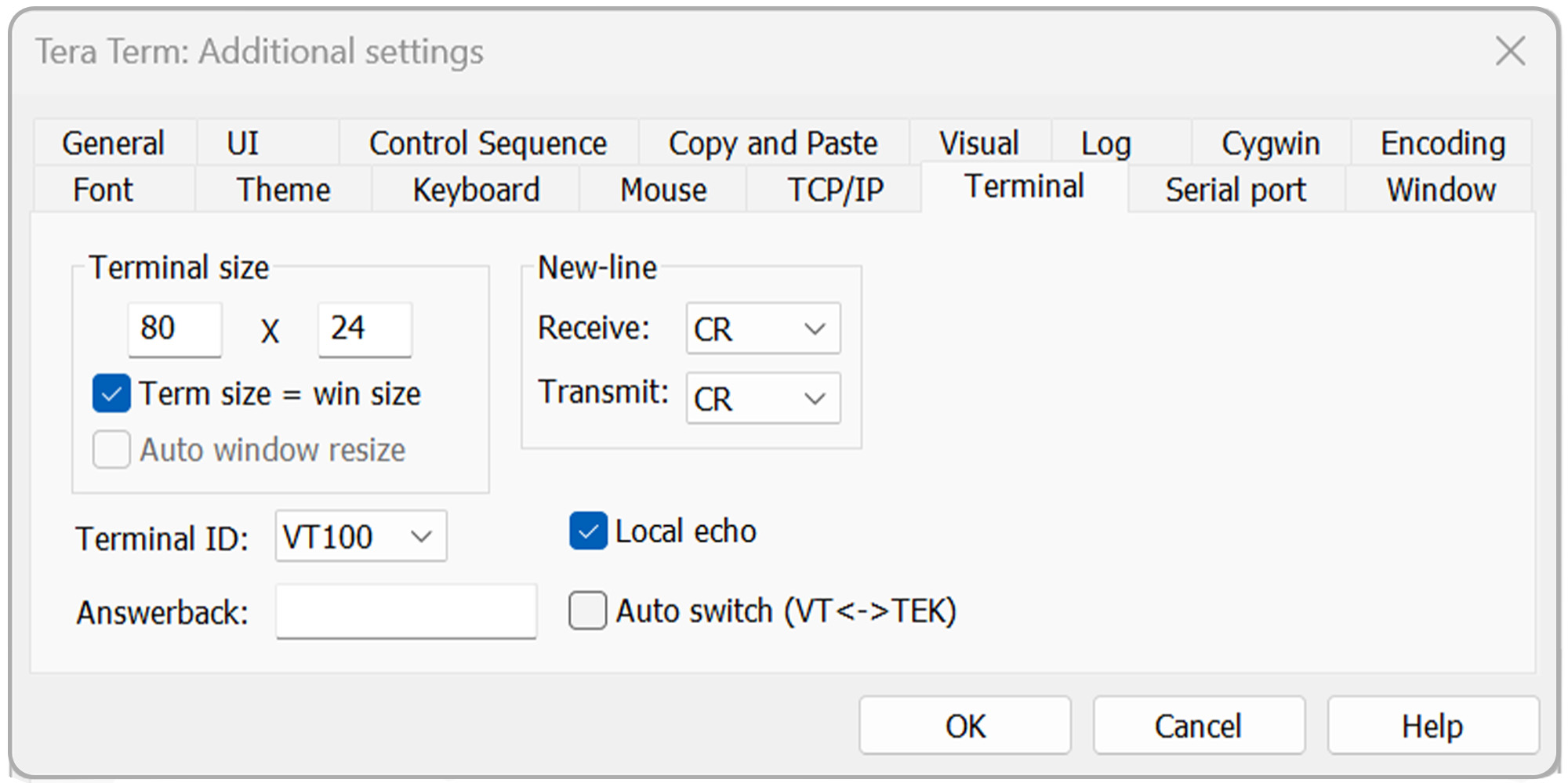
Click OK to continue.
To verify communications:
Send: S101
Press Enter.
The MX200 should return the vacuum measurement for channel 1.
Continue using Tera Term to send additional supported MX200 commands.
See Section 6, MX200 Communications Commands, for the available commands.
6 MX200 Communications Commands
Use the following table as a reference for communicating with the MX200.
When using The Fredericks Company Online Serial Terminal, supported commands can also be located and sent using the Command Assistant.
When using Tera Term, enter the desired command manually and press Enter.
For a detailed description of MX200 digital communications and individual commands, refer to Section 9, Digital Communications, of the MX200 Vacuum Controller Instruction Manual .
| コマンド | サンプル出力 | 説明 |
|---|---|---|
| R1<cr> | XX<cr><lf> | 出力単位設定XX:PA=パスカル、TR=Torr、MB=mBar、TD=Torr 10進数、MT=mTorr/Torr |
| W1XX<cr> | XX<cr><lf> | 単位をXXに設定:PA=Pascal、TR=Torr、MB=mBar、TD=Torr decimal |
| S1XX<cr> | ppsee<cr><lf> | ステーションXXの真空度測定値はppsee |
| S1<cr> | XX=ppsee … XX=ppsee<cr><lf> | 各チャンネル XX の出力 ppsee 読み取り値 |
| S2<cr> | NNNNNN<cr><lf> | ロジックファームウェアバージョン |
| S3<cr> | NNNNNN<cr><lf> | ファームウェアのバージョンを表示 |
| S4<cr> | XX=YY … XX=YY<cr><lf> | 出力ステーションの種類。XX = ステーション番号、YY = センサータイプ |
| S5<cr> | XX=YY … XX=YY<cr><lf> | 出力設定点 XX 状態 YY(ON=ON、OF=OFF、00=設定点接続なし) 出力設定点 XX 状態 YY(ON=ON、OF=OFF、00=設定点接続なし |
| S6<cr> | Televac … <cr><lf> | すべての設定情報を出力 |
| RC1XX<cr> | Baa<cr><lf> | チャンネル XX の最初の校正ポイントを出力します。 |
| RC2XX<cr> | Baa<cr><lf> | チャンネル XX の 2 番目の校正ポイントを出力します。 |
| RC3XX<cr> | Baa<cr><lf> | チャンネル XX の 3 番目のキャリブレーションポイントを出力し、ポイントが存在しない場合はエラーを返します。 |
| RC4XX<cr> | Baa<cr><lf> | Output fourth calibration point for channel XX, return error if point doesn’t exist |
| WC1XXBaa<cr> | PPSEE<cr><lf> | チャンネル XX の最初の較正ポイントを設定します。 |
| WC2XXBaa<cr> | PPSEE<cr><lf> | Set second calibration point for channel XX |
| WC3XXBaa<cr> | PPSEE<cr><lf> | チャンネル XX に 3 番目のキャリブレーションポイントを設定し、ポイントが存在しない場合はエラーを返します。 |
| WC4XXBaa<cr> | PPSEE<cr><lf> | Set fourth calibration point for channel XX, return error if point doesn’t exist |
| R2<cr> | 01 02 03 04 05 … <cr><lf> | MX200に接続されているチャンネル番号を出力 |
| R3XX<cr> | HI<cr> or LO<cr><lf> | 局XXのHI/LO分解能を出力します。 |
| W3XX<cr> | HI<cr> or LO<cr><lf> | ステーションXXのHI/LO解像度を切り替える |
| R4<cr> | 01 02 03 04 05 … <cr><lf> | 測定画面に表示するように設定したチャンネル番号を出力します。 |
| W4XX<cr> | ON<cr> or OF<cr><lf> | 測定画面からチャンネル XX を追加または削除します。 |
| R5XX<cr> | FbaaBAA<cr><lf> | 出力アナログ出力形式、高低値 |
| W5XXF<cr> | F<cr><lf> | チャンネル XX のアナログ出力フォーマットを linear-by-decade (lin/dec=3, lin/dec 7E=4) に設定します。 |
| W5XX1baa<cr> | Fbaa<cr><lf> | チャンネル XX のアナログ出力フォーマットをリニアに設定します。 |
| W5XX2baaBAA<cr> | FbaaBAA<cr><lf> | チャンネル XX のアナログ出力フォーマットをリニアに設定します。 |
| R6XX<cr> | GG<cr><lf> | チャンネルXXの出力ガス設定 |
| W6XXGG<cr> | GG<cr><lf> | チャンネル XX をガスタイプに設定して GG |
| R7Y<cr> | ppseePPSEEZZ<cr><lf> | 出力リレーYオン=ppsee、リレーYオフ=ppsee、リレーYに割り当てられたチャンネルZZ |
| W7YppseePPSEEZZ<cr> | ppseePPSEE<cr><lf> | リレーYをppseeにオン、リレーYをppseにオフ、リレーYをチャンネルZZに設定する。 |
| R8<cr> | A<cr><lf> | Outputs the cold cathode mode, A (auto = 1, self = 2) |
| W8A<cr> | A<cr><lf> | 冷陰極モードA(自動=1、自己=2)を設定します。 |
| R9<cr> | BB<cr><lf> | 冷陰極スイッチポイント値 BB(01~50)を返します。 |
| W9BB<cr> | BB<cr><lf> | 冷陰極スイッチポイント値 BB(01~50)を設定します。 |
| R10<cr> | CD<cr><lf> | Returns the cold cathode status odd and even (on/off) C-odd, D-even (0 = off, 1 = on) |
| W10CD<cr> | CD<cr><lf> | Sets the cold cathode status odd and even (on/off) C-odd, D-even (0 = off, 1 = on) |
| C1TTTT<cr> | TTTT<cr><lf> | ボーレートをTTTTに設定 |
| C2EE<cr> | EE<cr><lf> | アドレスをEE(00~99)に設定、RS-485のみ |
| C4N<cr> | N<cr><lf> | I/O を N に変更 (RS-232=1, RS-485=2, USB=3) |
| C1<cr> | TTTT<cr><lf> | 出力ボーレート設定 |
| C2<cr> | EE<cr><lf> | RS-485用出力アドレス |
| C4<cr> | N<cr><lf> | 出力通信タイプ(RS-232=1、RS-485=2、USB=3 |
| HM<cr> | M<cr><lf> | 測定画面に戻る |
| RLR<cr> | SXXX<cr> | リーク率計算またはチャンネル1をmTorrで出力(S=sign、XXX=-999~999)。 |
| WLRX<cr> | X<cr><lf> | チャンネル 1 のリーク率計算の ON/OFF(0=OFF、1=ON |
| WD_1XX<cr> | XX<cr><lf> | チャンネルXXのチャンネル設定をデフォルトに戻す |
| WD_7X<cr> | X<cr><lf> | セットポイントリレーのデフォルトをセットポイントXのために復元します。 |
| WD_CXX<cr> | XX<cr><lf> | チャンネル XX の較正をデフォルトに戻す |
| WD_G<cr> | D<cr><lf> | グローバルセットアップのデフォルトを復元する |
| SN<cr> | NNNNNN<cr><lf> | ユニットの6桁のシリアル番号を返します。 |
| PG_LGC<cr> | Bootloader … <cr><lf> | ロジックファームウェアのブートローダを入力します。 |
| PG_DSP<cr> | Bootloader … <cr><lf> | Enter the bootloader for the display firmware |