



1 Description
This application note explains how to reset the data memory of an MM200 Vacuum Controller using a Windows PC.
The recommended method is to use The Fredericks Company Online Serial Terminal. The Online Serial Terminal communicates directly with the MM200 through a supported web browser and includes a guided Reset MM200 Data Memory function. This function automatically sends the required reset commands in the correct sequence and waits for each command to be acknowledged before continuing.
A USB-to-RS-232 converter is required to connect the MM200 to your computer.
Alternatively, the reset procedure can be performed manually using the Tera Term serial communications program. Download the latest version of Tera Term from GitHub.
Back to Table of ContentsIMPORTANT
The MM200 must have the 2-6200-213 RS-232/485 Communications Module installed to complete this procedure.
Resetting the MM200 data memory will reset all configurable features of the MM200 vacuum controller, such as analog output and set point settings.
2 Required Equipment, Tools, and Software
| Equipment/Tool | Part Number/Requirement |
|---|---|
| MM200 Vakuum-Controller | 2-7900-20 |
| RS-232/485 Communication Module | 2-6200-213 - must be installed in the MM200 |
| Windows PC | PC with an available USB port |
| USB-to-RS-232 Converter | USB-A to DB9 RS-232 converter |
| DB9-to-DB9 Serial Cable | DB9 male-to-female, straight-through cable |
| Google Chrome or Microsoft Edge | Online Serial Terminal method |
| Tera Term | Manual method only |
IMPORTANT
The DB9 cable must be a straight-through cable, with each pin connected to the corresponding pin at the opposite end. Do not use a null-modem or crossover cable.
3 Finding the COM Port
Verify that the MM200 has the RS-232/485 Communications Module (PN: 2-6200-213) installed.
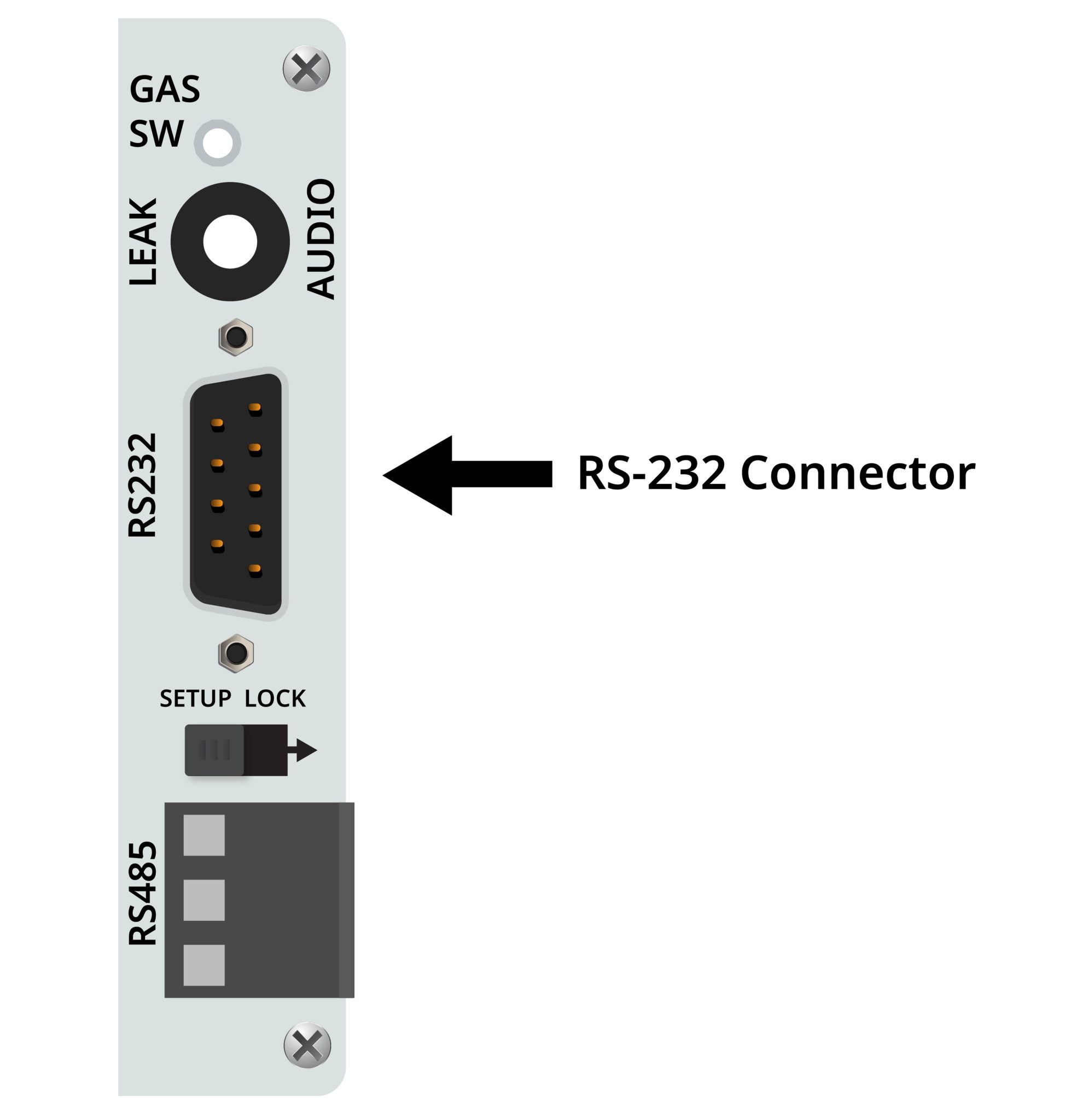
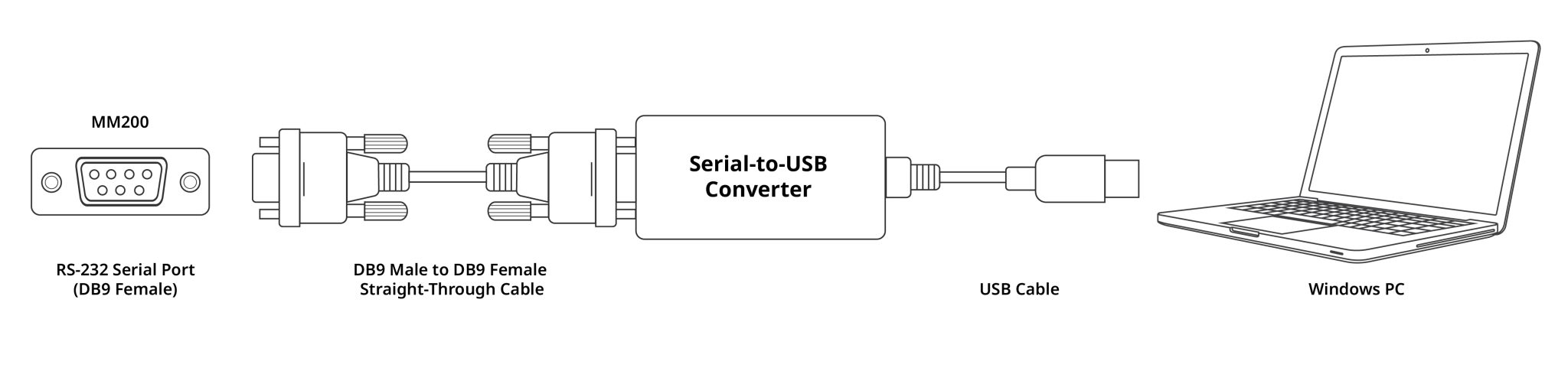
Connect the MM200 to your Windows PC as shown below:
- Connect the DB9 straight-through serial cable to the RS-232 connection on the MM200.
- Connect the other end of the DB9 cable to the USB-to-RS-232 converter.
- Connect the USB-to-RS-232 converter to an available USB port on your Windows PC.
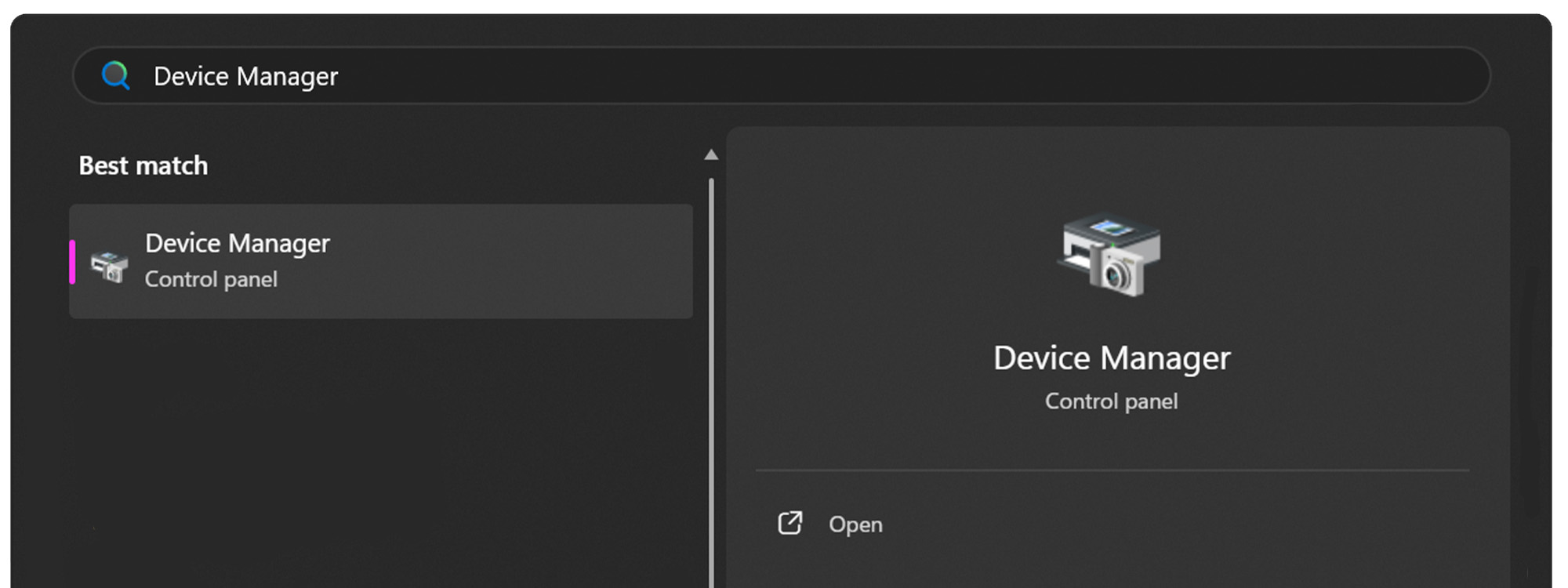
Open the Start Menu on your Windows PC.

Open the Device Manager.
Expand the Ports (COM & LPT) dropdown.
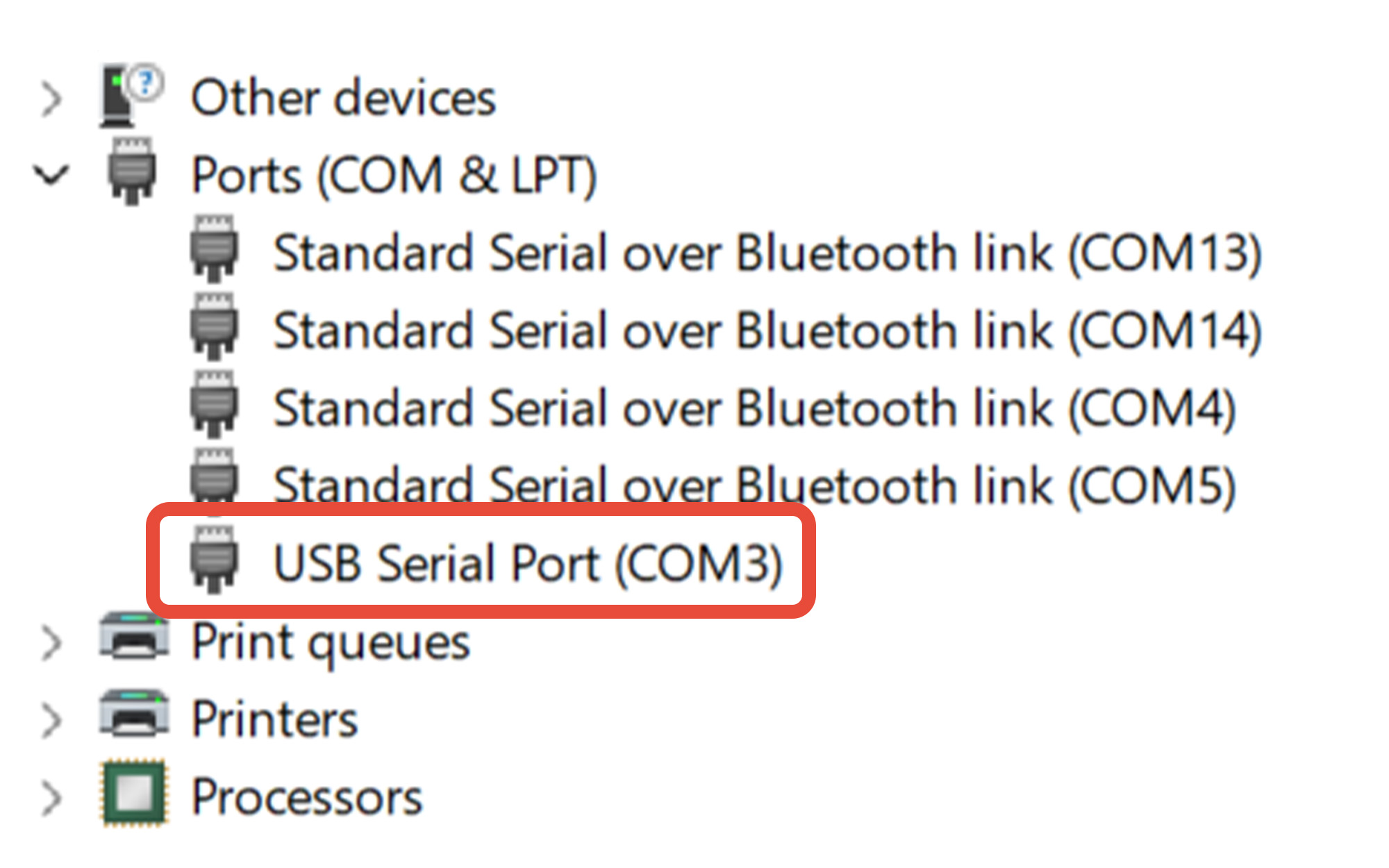
Determine the COM port assignment for your USB-to-RS-232 converter. In this example, the converter is assigned to COM3.
If you're unsure which COM port belongs to the USB-to-RS-232 converter:
- Leave Device Manager open.
- Unplug the USB-to-RS-232 converter from the PC.
- Watch which COM port disappears from the Ports (COM & LPT) list.
- Plug the converter back into the PC.
- The COM port that reappears is the port assigned to the USB-to-RS-232 converter.
Remeber this COM port number. You will select it when connecting to the MM200 using either the Online Serial Terminal or Tera Term
4 Using The Fredericks Company Online Serial Terminal
Watch the demonstration below for step-by-step instructions on resetting the MM200 data memory using The Fredericks Company Online Serial Terminal.
View Text Instructions
Using Google Chrome or Microsoft Edge, visit The Fredericks Company Online Serial Terminal.
Select MM200 from the Product dropdown and RS-232 from the Connection dropdown. Select the baud rate configured on your MM200. In this example, 9600 baud is used.
Click CONNECT to open the serial-port selection window.
Select the COM port assigned to your USB-to-RS-232 converter, then click Connect.
If you are unsure which COM port to select, see Section 3, Finding the COM Port.
In the Command Assistant, expand Bulk Actions. Locate Reset MM200 Data Memory, then click RESET DATA MEMORY.
A confirmation window will appear before the reset begins.
Review the warning, then click CONFIRM RESET to continue.
The Online Serial Terminal automatically sends the following six commands to the MM200 in sequence:
D1 → CF → PF → BF → CA3 → SE
The terminal waits for each transaction to complete before sending the next command.
When all six commands have been acknowledged by the MM200, the Online Serial Terminal displays:
MM200 data-memory reset sequence completed.
The MM200 data memory has now been reset.
If you continue to experience issues, start an online chat with us or contact our Technical Support Team.
5 Using Tera Term
Watch the demonstration below for step-by-step instructions on resetting the MM200 data memory using Tera Term.
View Text Instructions
Open Tera Term on your Windows PC.
Select Serial, then select the COM port assigned to your USB-to-RS-232 converter from the Port dropdown.
Click OK to continue.
If you are unsure which COM port to select, see Section 3, Finding the COM Port.
Open the Setup menu, then select Serial port.
Verify that the serial port settings are configured as follows:
- Baud rate: 9600
- Data: 8 bit
- Parity: none
- Stop: 1 bit
- Flow control: none
- Transmit delay: 0 msec/char, 0 msec/line
Click OK to continue.
Open the Setup menu again, then select Terminal.
Under the New-line settings, configure the following:
- Receive: CR+LF
- Transmit: CR+LF
Click OK to continue.
In the Tera Term terminal window, enter the following commands one at a time and in the order shown.
Press Enter after each command and wait for the MM200 to acknowledge the command before entering the next command.
- D1
- CF
- PF
- BF
- CA3
- SE
After all six commands have been entered and acknowledged by the MM200, the data-memory reset is complete.
If you continue to experience issues, start an online chat with us or contact our Technical Support Team.