



1 Description
Zweck
This application note explains how to register the Televac® MX200 EthernetIP Electronic Data Sheet (EDS) file in Rockwell Automation software for use with an Allen-Bradley CompactLogix Programmable Logic Controller (PLC). It also explains how to configure the MX200 connection and troubleshoot an Electronic Keying Mismatch.
EDS File
The MX200 EthernetIP EDS file contains vendor and module information for the EthernetIP networking device, including Class 1 connection information and Class 3 parameter information. Once the EDS file is registered, the PLC can use the module definition to identify data variable paths, sizes, and data types and establish the desired connections for operation.
Zusätzliche Informationen
Refer to the MX200 Instruction Manual for detailed information about Class 1 and Class 3 communications, the complete ADI table, including data instance, name, array length, access, and description, and instructions for configuring the MX200 EthernetIP IP address.
Back to Table of Contents2 Required Equipment, Tools, and Software
| Equipment/Tool | Part Number/Requirement |
|---|---|
| MX200 Vakuum-Controller | 2-7900-37 - MX200 with the EthernetIP module installed. |
| Allen-Bradley CompactLogix PLC | PLC used to communicate with the MX200 |
| Ethernet Cable | Used to connect the MX200 EthernetIP port to the PLC |
| Rockwell Automation Software | Software that includes the EDS Hardware Installation Tool |
| MX200 EthernetIP EDS-Datei | Televac_MX200_Ethernetip.eds |
| Web Browser | Used to verify the EthernetIP module firmware revision when troubleshooting an Electronic Keying Mismatch |
IMPORTANT
Before beginning, verify that the MX200 EthernetIP interface has been configured with the appropriate IP address for your network.
Refer to the MX200 Instruction Manual for instructions on configuring the IP address.
3 Loading the EDS File
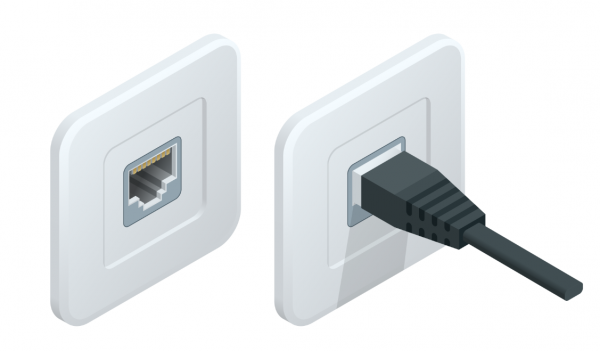
Connect the MX200 EthernetIP port on the back of the unit to the Allen-Bradley CompactLogix PLC.
In the Rockwell Automation software, select:
Tools → EDS Hardware Installation Tool
The EDS Hardware Installation Tool will open.
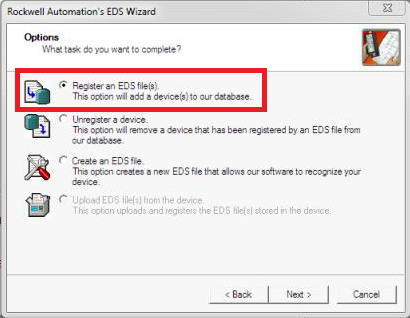
In the EDS Hardware Installation Tool, select:
Register an EDS file
Click Next to continue.
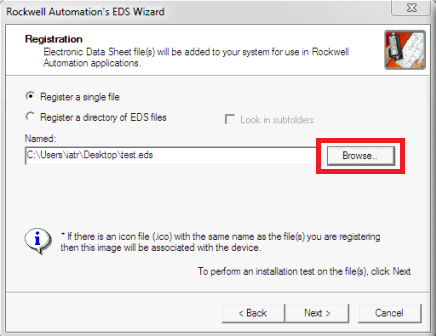
Verify that the MX200 EthernetIP EDS file has been downloaded to your computer.
The file name is: Televac_MX200_Ethernetip.eds
Click Browse, locate and select the EDS file, then click Next to continue.
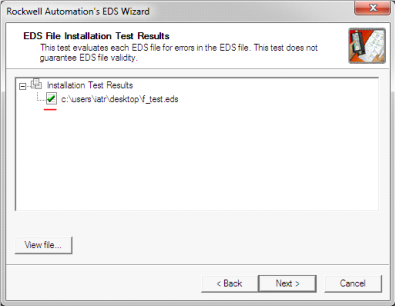
Review the EDS file installation test results and verify that the file passes the installation test.
Click Next to continue.
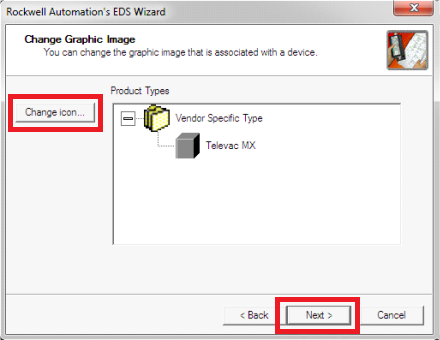
If desired, change the graphic associated with the MX200 module.
Click Next to continue.
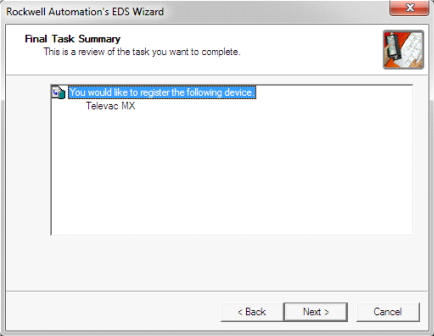
Review the registration information and confirm that the MX200 EDS file is selected for registration.
Click Next to continue.
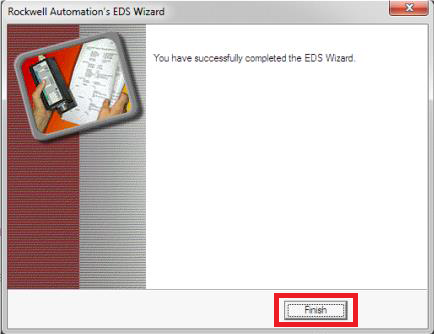
Click Finish to complete the EDS file registration.
To update the MX200 EDS file in the future, the existing EDS file must first be unregistered.
Open the EDS Hardware Installation Tool and select:
Unregister a device
After the existing EDS file has been unregistered, repeat Steps 3.3 through 3.8 using the updated EDS file.
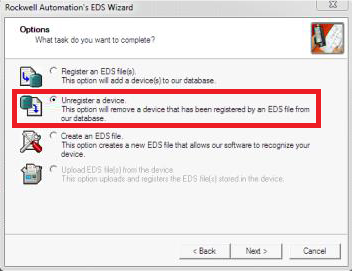
4 Setting Up the MX200 Connection
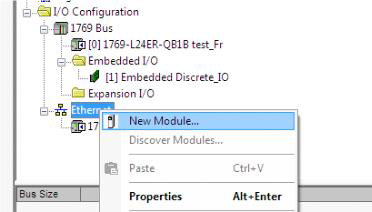
In the Rockwell Automation project, locate the Ethernet network under the controller I/O configuration.
Right-click Ethernet, then select: New Module.
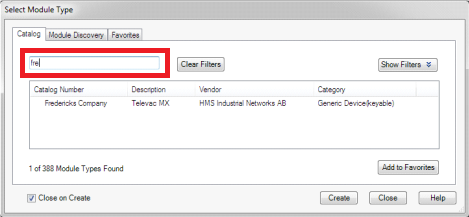
In the module selection window, enter Fredericks in the search field.
Select the Televac MX module from the search results.
Enter a Name for the MX200 module.
Enter the IP Address assigned to the MX200 EthernetIP interface.
Then click: Change Module Definition.
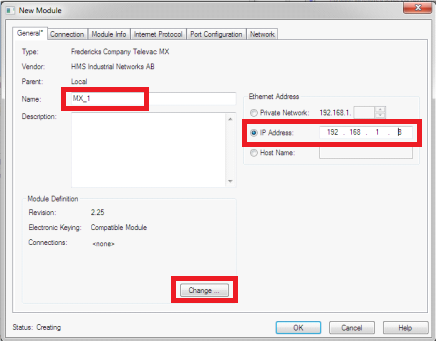
In the Module Definition window, set the connection data type to: REAL.
Click OK to save the module definition.
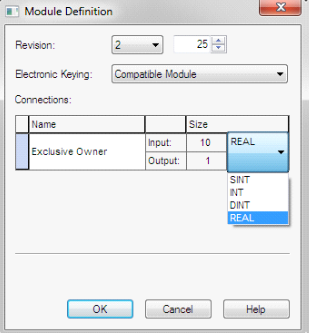
After the module has been configured, the PLC should be able to establish connections to the MX200 data variables defined by the EDS file.
Refer to the MX200 Instruction Manual for additional information about EthernetIP setup, operation, Class 1 communications, Class 3 communications, and the available data variables.
5 Troubleshooting an Electronic Keying Mismatch
If the MX200 does not establish a connection, verify whether the module is reporting an Electronic Keying Mismatch.
The module status should indicate that the major and/or minor revision does not match the configured module definition.
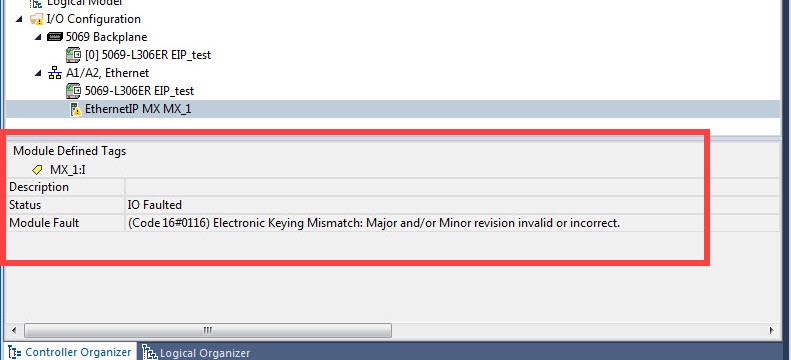
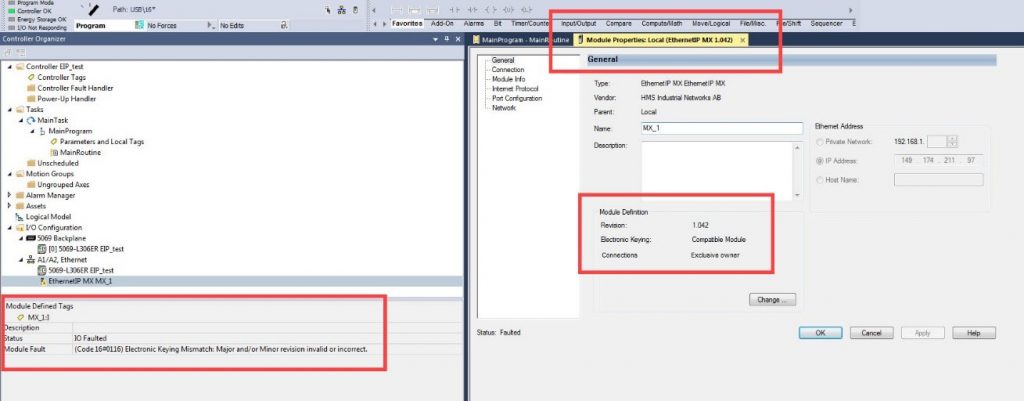
Open the properties for the MX200 module.
Locate the Module Definition information and note the currently configured revision.
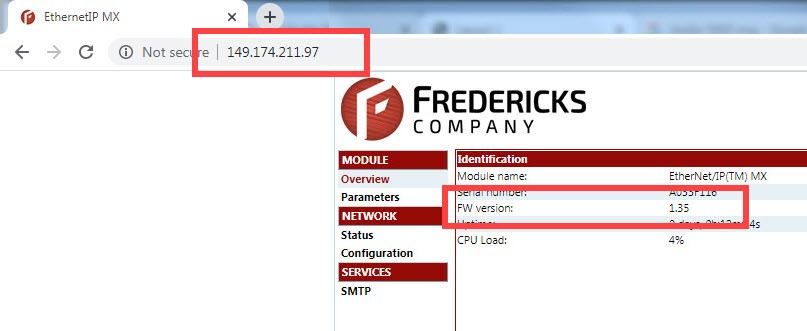
Open a web browser and enter the IP Address of the MX200 EthernetIP module.
On the module web interface, locate the firmware revision.
Record the revision number shown in the browser.
Return to the Rockwell Automation software.
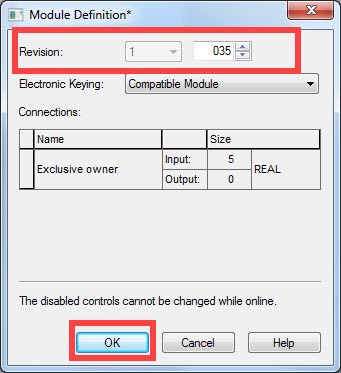
Open the Module Definition for the MX200 and change the revision so that it matches the firmware revision shown in the MX200 EthernetIP web interface.
Click OK to save the updated module definition.
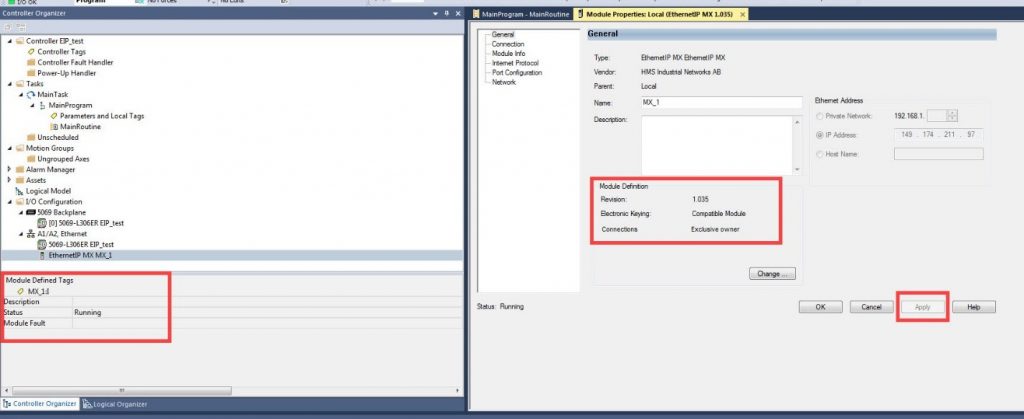
Click Apply to save the updated module configuration.
Verify that:
- The Electronic Keying Mismatch is no longer displayed.
- The MX200 module shows that the connection is running.
6 Additional Resources
| Resource | Link |
|---|---|
| MX200 Gebrauchsanweisung | View Online |
| MX200 EthernetIP EDS-Datei | Download Online |