



1 Description
This application note explains the process for interfacing and communicating with an MX200 Vacuum Controller from a Windows PC.
The recommended method is to use The Fredericks Company Online Serial Terminal. The Online Serial Terminal communicates directly with the MX200 through a supported web browser and allows MX200 serial commands to be sent without installing additional communications software.
USB communication is recommended when connecting the MX200 directly to a Windows PC.
Alternatively, you can use the Tera Term serial communications program. Tera Term must be installed on your computer before following these instructions. If you do not have Tera Term installed, download the latest version from GitHub .
Back to Table of Contents2 Required Equipment, Tools, and Software
| Equipment/Tool | Part Number/Requirement |
|---|---|
| Controlador de vacío MX200 | 2-7900-034, 2-7900-037, or 2-7900-038 |
| USB Cable | USB Type A to USB Type B cable |
| Windows PC | PC with an available USB port |
| Google Chrome or Microsoft Edge | Online Serial Terminal method |
| Tera Term | Manual method only |
3 Finding the COM Port
On the MX200, press the Home button and navigate to:
Global Setup → Communications → Interface
Verify that USB is selected.
Then, navigate to:
Global Setup → Communications → Settings
Remember the baud rate. You will select it when connecting to the MX200 using either the Online Serial Terminal or Tera Term.
Connect the MX200 to your Windows PC using a USB Type A to USB Type B cable.
Connect the USB Type B connector to the USB port on the back of the MX200 and the USB Type A connector to an available USB port on your Windows PC.
Windows will automatically recognize the MX200 and assign it to a COM Port.
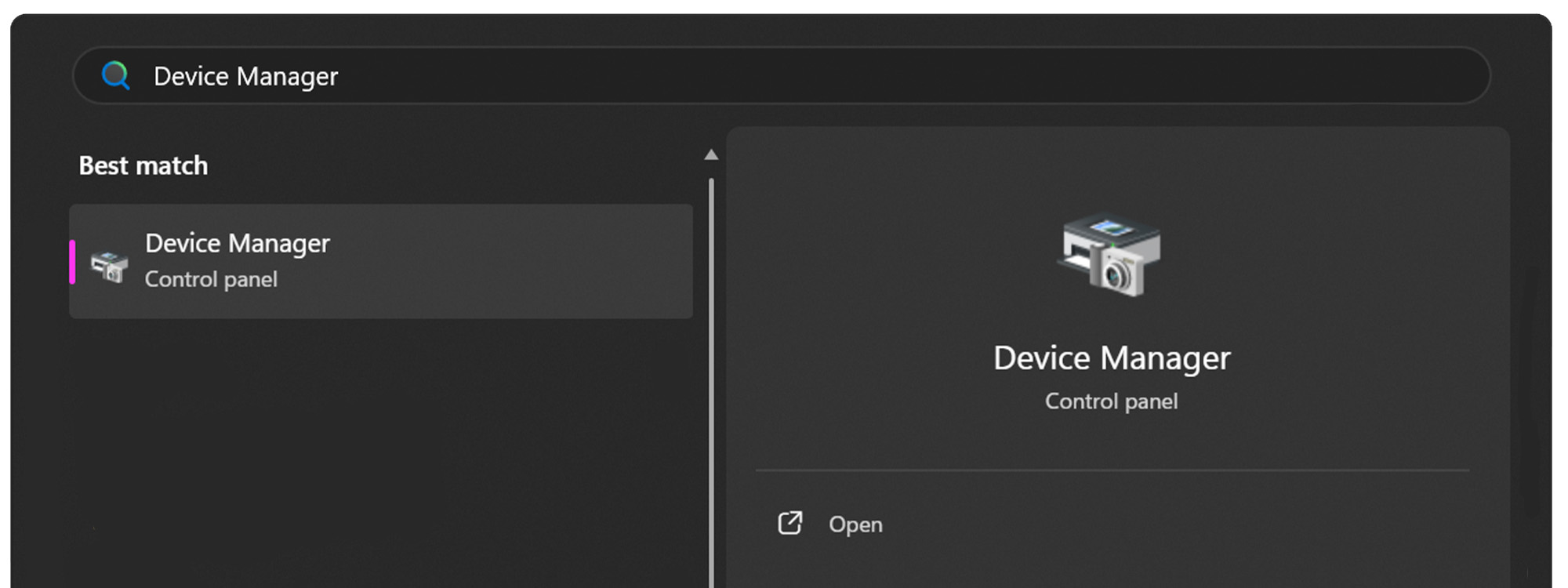
Open the Start Menu on your Windows PC.

Open the Device Manager.
Expand the Ports (COM & LPT) dropdown.
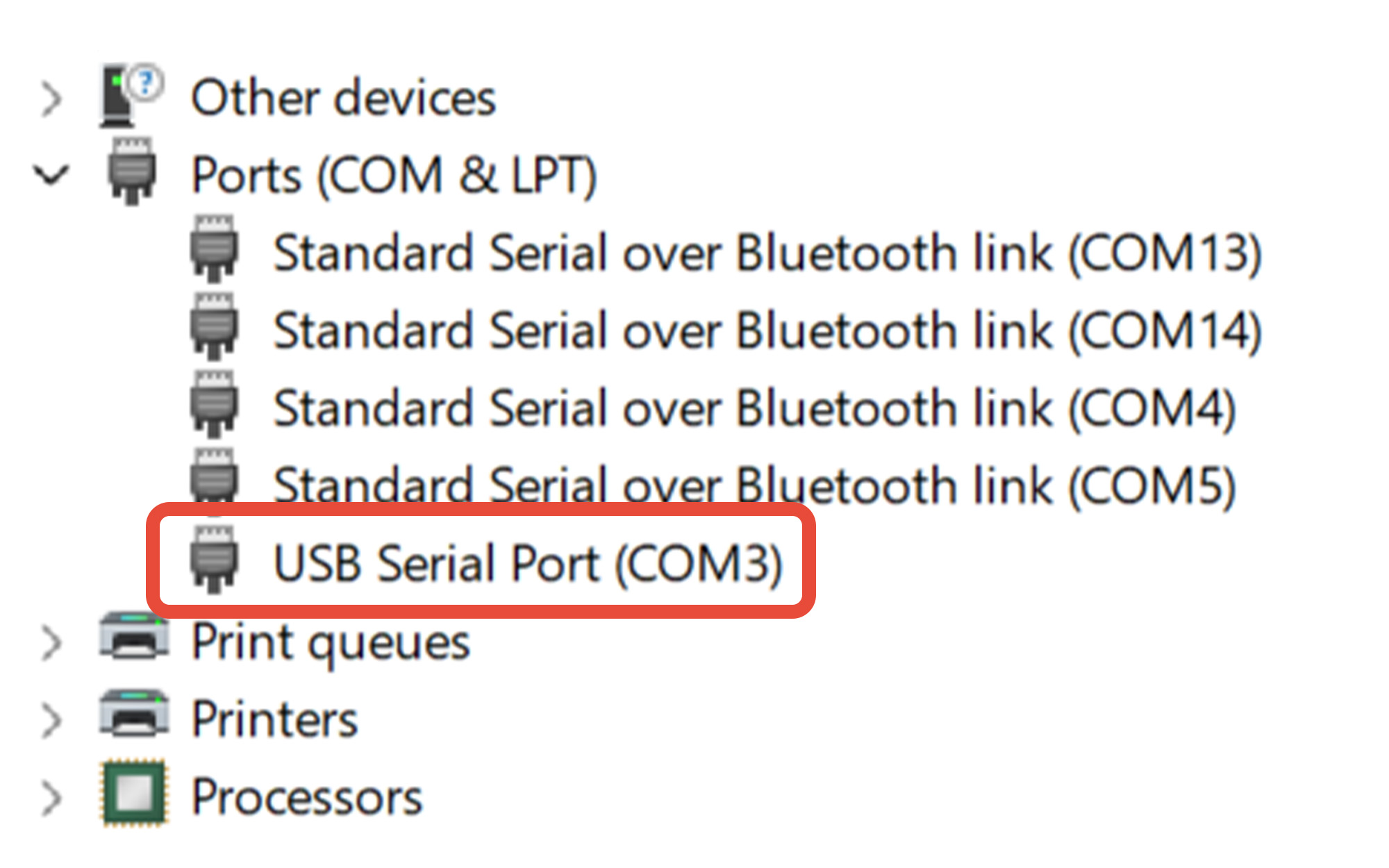
Determine the COM port assigned to the MX200. In this example, the MX200 is assigned to COM3.
If you're unsure which COM port belongs to the MX200:
- Leave Device Manager open.
- Disconnect the USB cable from the PC.
- Watch which COM port disappears from the Ports (COM & LPT) list.
- Reconnect the USB cable.
- The COM port that reappears is the port assigned to the MX200.
Remember this COM port number. You will select it when connecting to the MX200 using either the Online Serial Terminal or Tera Term.
4 Using The Fredericks Company Online Serial Terminal
Using Google Chrome or Microsoft Edge, visit The Fredericks Company Online Serial Terminal.
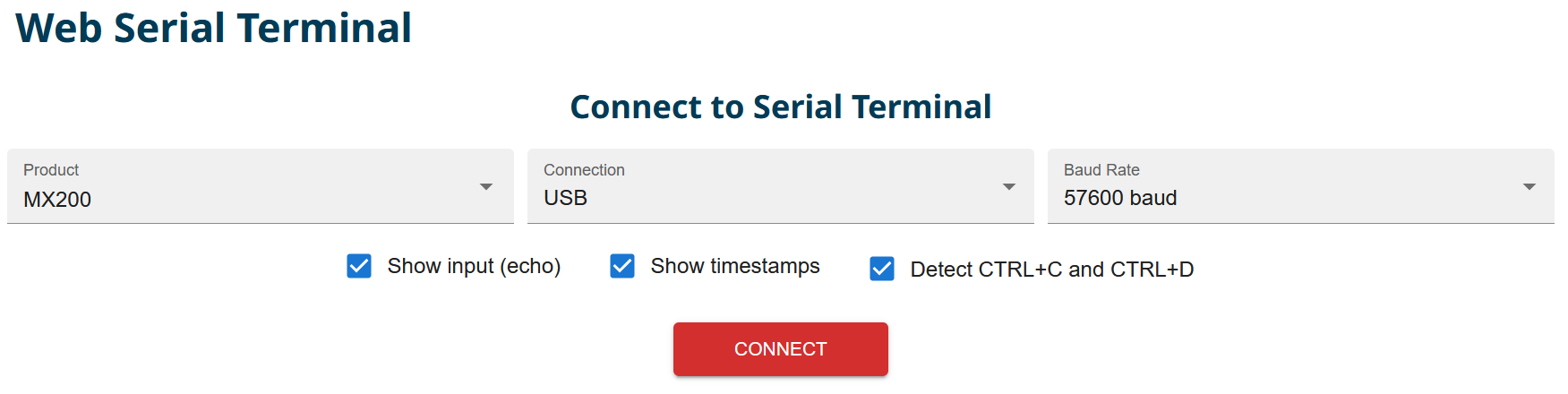
Select MX200 from the Product dropdown and USB from the Connection dropdown. Select the baud rate configured on your MX200. In this example, 57600 baud is used.
Click CONNECT to open the serial-port selection window.
Select the COM port assigned to your MX200, then click Connect.
If you are unsure which COM port to select, see Section 3, Finding the COM Port.
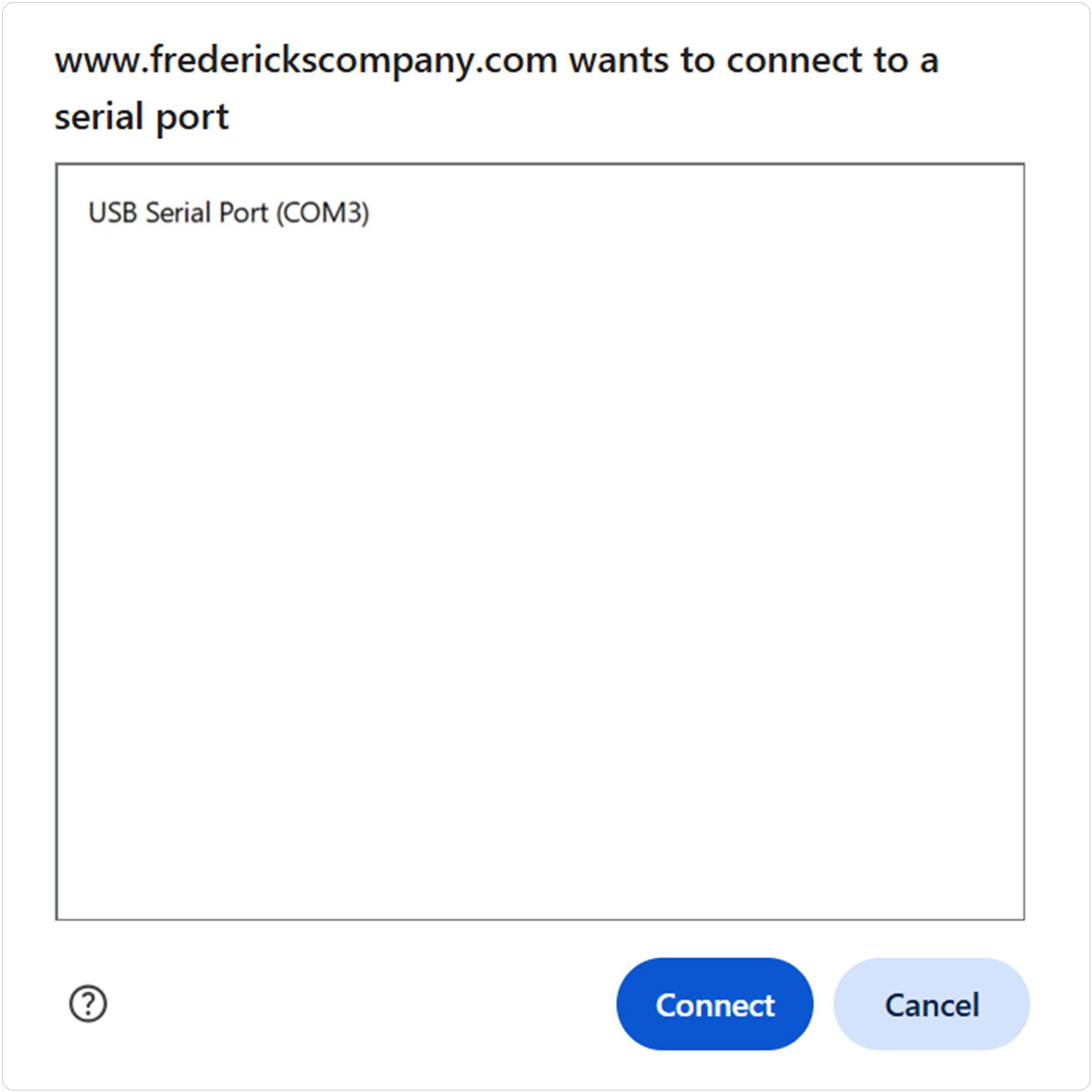
Use the terminal input field or the Command Assistant to send a test command to the MX200. For example, to read the vacuum measurement from channel one:
Send: S101
Continue using the Command Assistant to locate and send additional supported MX200 commands or enter commands manually in the terminal.
See Section 6, MX200 Communications Commands, for the available commands.
5 Using Tera Term
Open Tera Term on your Windows PC.
Select Serial, then select the COM port assigned to your MX200 from the Port dropdown.
Click OK to continue.
If you are unsure which COM port to select, see Section 3, Finding the COM Port.
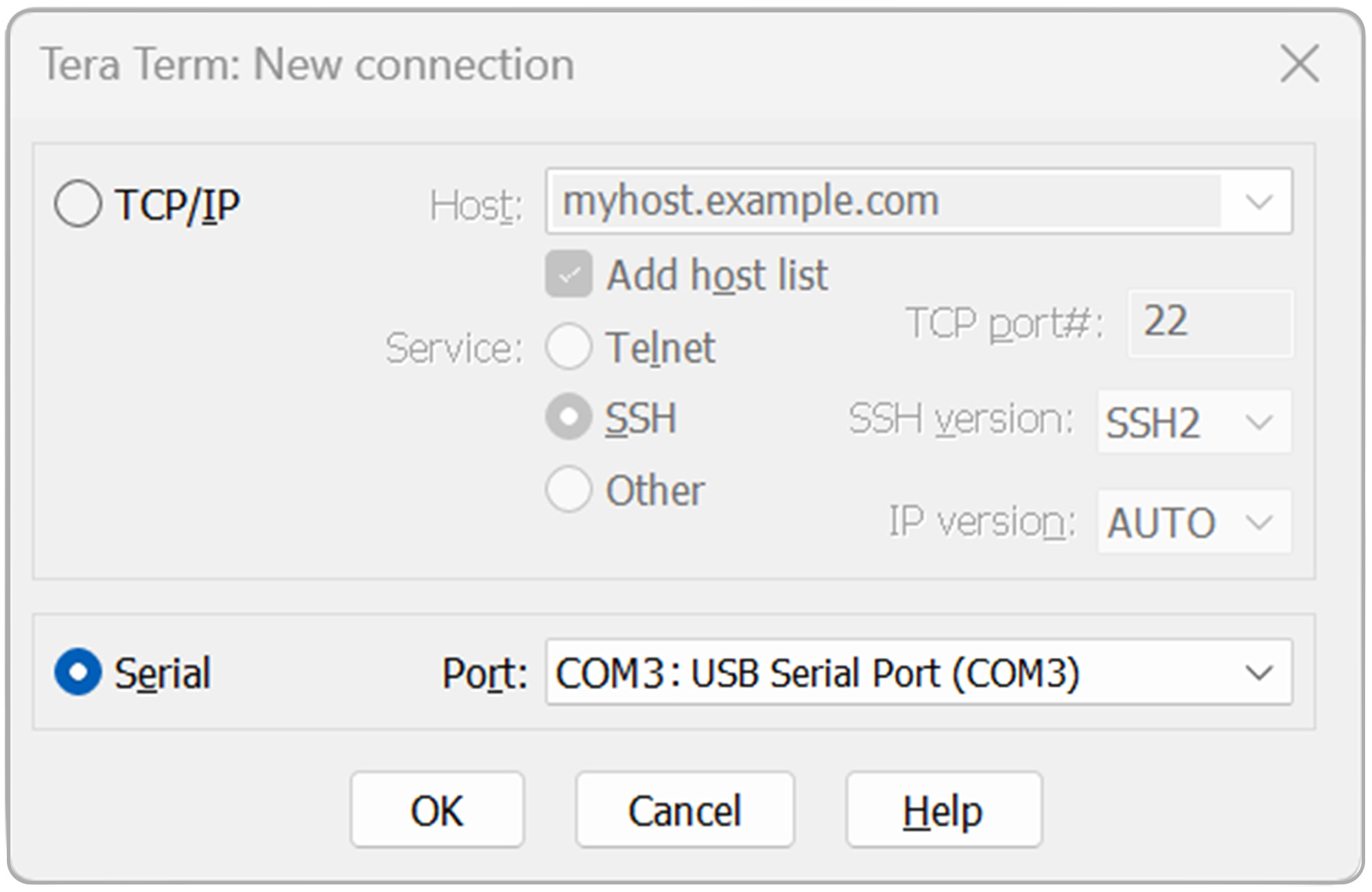
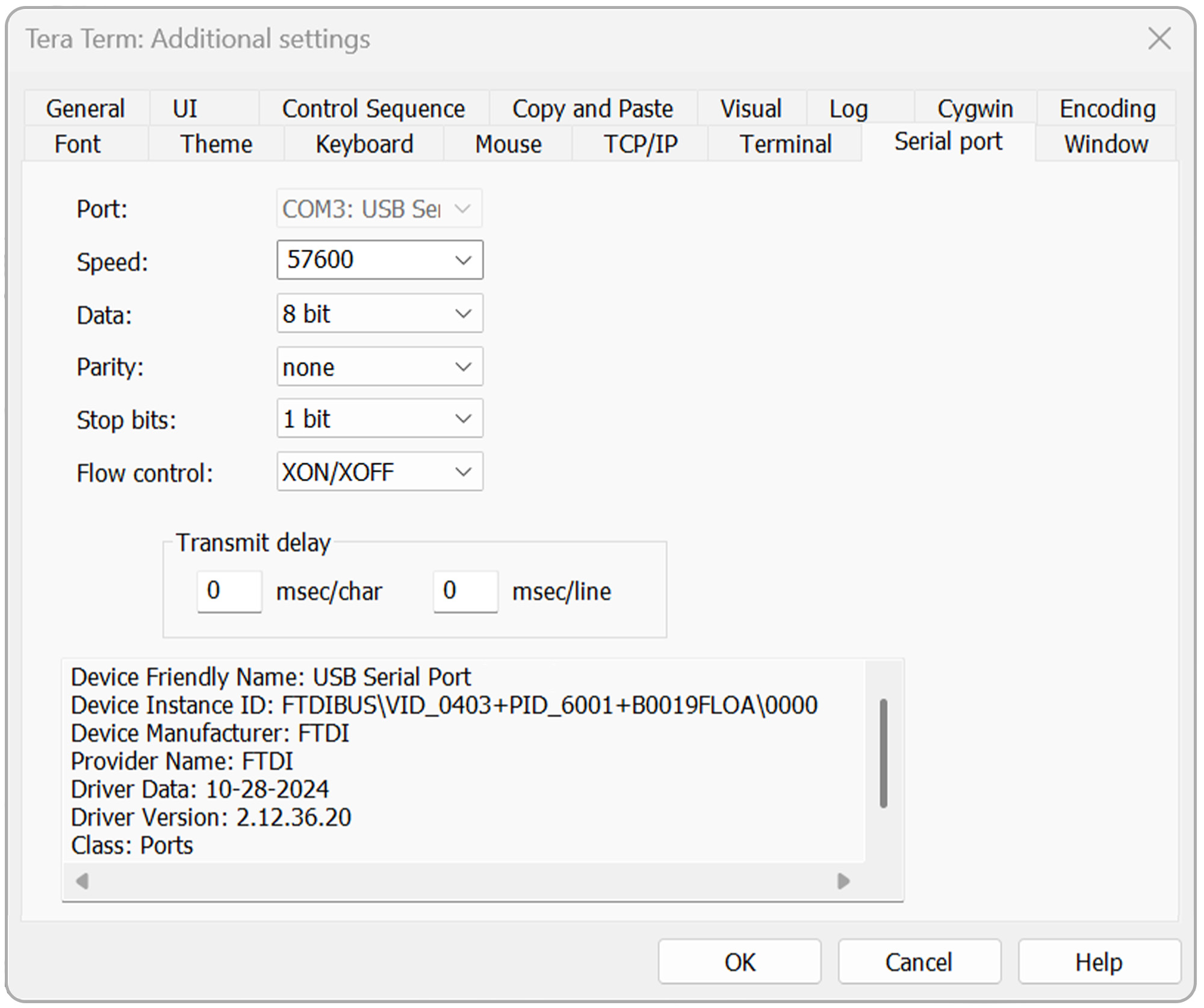
Open the Setup menu, then select Serial port.
Verify that the serial port settings are configured as follows:
- Baud rate: Baud rate configured on the MX200
- Data: 8 bit
- Parity: none
- Stop: 1 bit
- Flow control: Xon/Xoff
- Transmit delay: 0 msec/char, 0 msec/line
Click OK to continue.
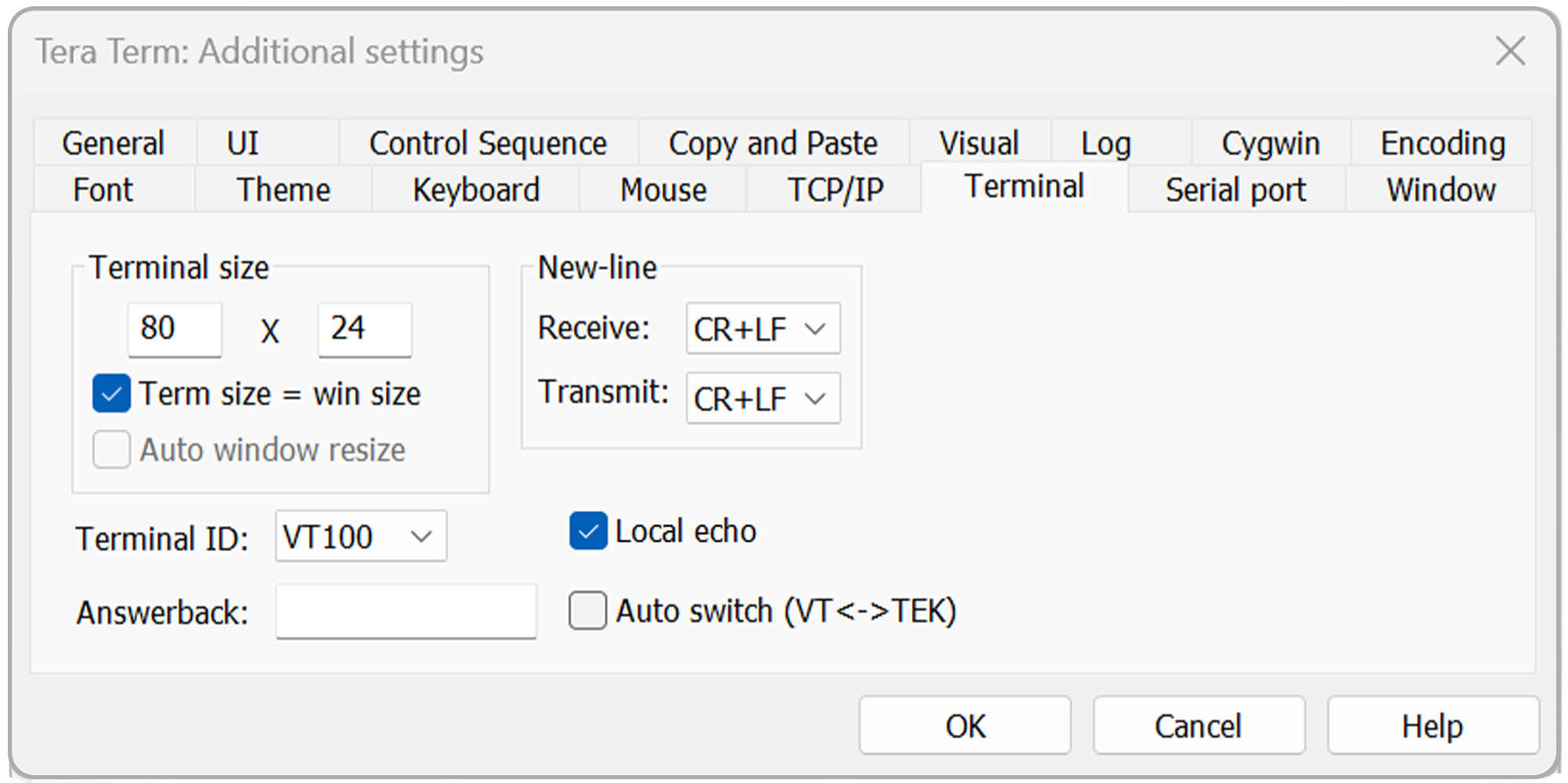
Open the Setup menu again, then select Terminal.
For standard communications, configure:
- Receive: CR+LF
- Transmit: CR+LF
- Local echo: Checked
For bootloading, use:
- Receive: CR
- Transmit: CR
- Local echo: Checked
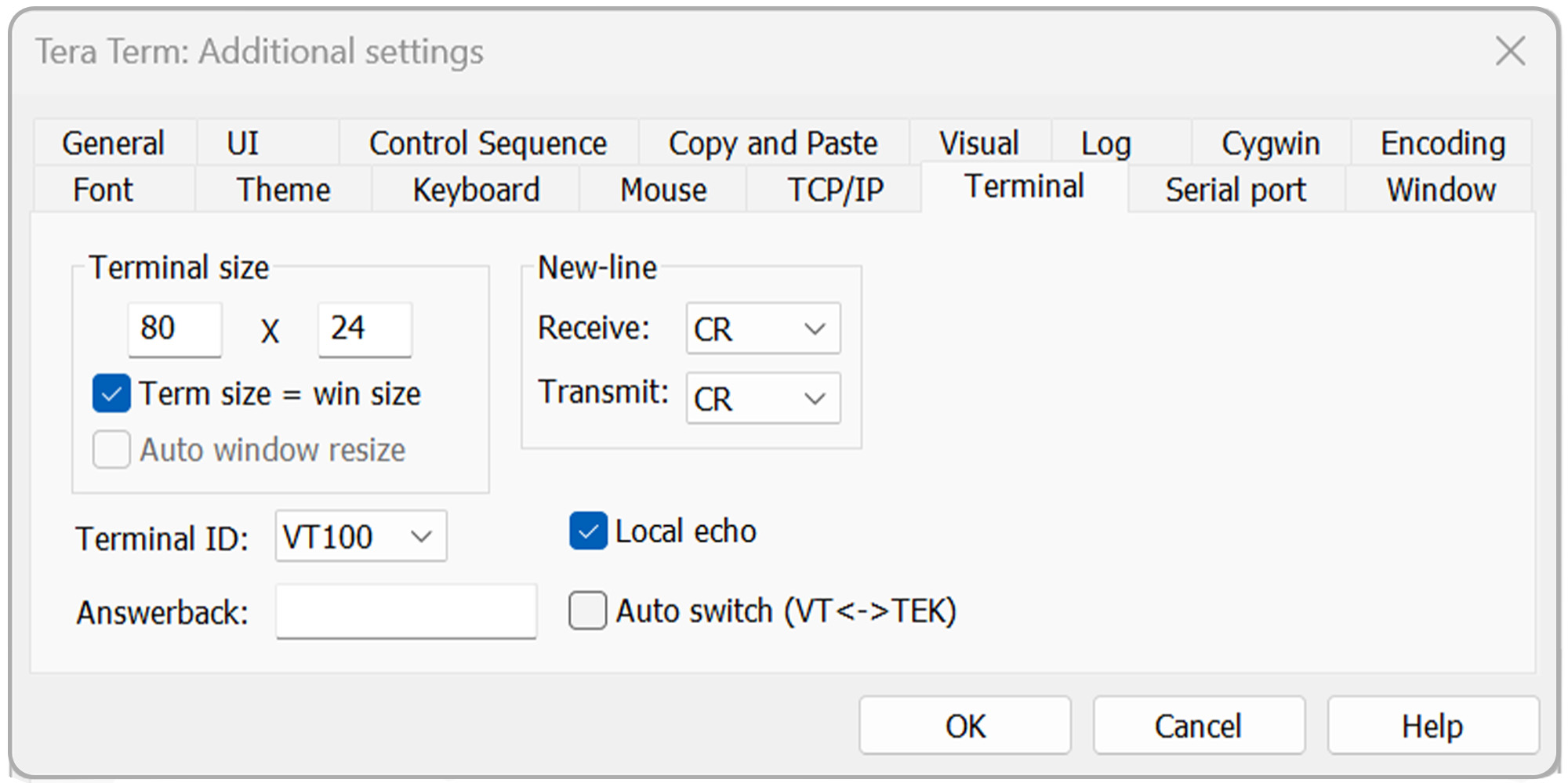
Click OK to continue.
To verify communications:
Send: S101
Press Enter.
The MX200 should return the vacuum measurement for channel 1.
Continue using Tera Term to send additional supported MX200 commands.
See Section 6, MX200 Communications Commands, for the available commands.
6 MX200 Communications Commands
Use the following table as a reference for communicating with the MX200.
When using The Fredericks Company Online Serial Terminal, supported commands can also be located and sent using the Command Assistant.
When using Tera Term, enter the desired command manually and press Enter.
For a detailed description of MX200 digital communications and individual commands, refer to Section 9, Digital Communications, of the MX200 Vacuum Controller Instruction Manual .
| Comando | Salida de la muestra | Descripción |
|---|---|---|
| R1<cr> | XX<cr><lf> | Unidades de salida con ajuste XX: PA=Pascal, TR=Torr, MB=mBar, TD=Torr decimal, MT=mTorr/Torr |
| W1XX<cr> | XX<cr><lf> | Ponga las unidades a XX: PA=Pascal, TR=Torr, MB=mBar, TD=Torr decimal |
| S1XX<cr> | ppsee<cr><lf> | La lectura del vacío de la estación XX es ppsee |
| S1<cr> | XX=ppsee … XX=ppsee<cr><lf> | Lecturas de salida de ppsee para cada canal XX |
| S2<cr> | NNNNNN<cr><lf> | Versión del firmware de la lógica |
| S3<cr> | NNNNNN<cr><lf> | Mostrar la versión del firmware |
| S4<cr> | XX=YY … XX=YY<cr><lf> | Tipos de estaciones de salida: XX = número de estación, YY = tipo de sensor |
| S5<cr> | XX=YY … XX=YY<cr><lf> | Salida del punto de ajuste XX estado YY (ON=on, OF=off, 00=no hay punto de ajuste conectado) |
| S6<cr> | Televac … <cr><lf> | Emitir toda la información de la configuración |
| RC1XX<cr> | Baa<cr><lf> | Salida del primer punto de calibración para el canal XX |
| RC2XX<cr> | Baa<cr><lf> | Salida del segundo punto de calibración para el canal XX |
| RC3XX<cr> | Baa<cr><lf> | Salida tercer punto de calibración para el canal XX, error de retorno si el punto no existe |
| RC4XX<cr> | Baa<cr><lf> | Output fourth calibration point for channel XX, return error if point doesn’t exist |
| WC1XXBaa<cr> | PPSEE<cr><lf> | Fijar el primer punto de calibración para el canal XX |
| WC2XXBaa<cr> | PPSEE<cr><lf> | Set second calibration point for channel XX |
| WC3XXBaa<cr> | PPSEE<cr><lf> | Fijar el tercer punto de calibración para el canal XX, devolver el error si el punto no existe |
| WC4XXBaa<cr> | PPSEE<cr><lf> | Set fourth calibration point for channel XX, return error if point doesn’t exist |
| R2<cr> | 01 02 03 04 05 … <cr><lf> | Los números de canal de salida conectados al MX200 |
| R3XX<cr> | HI<cr> or LO<cr><lf> | Salidas Resolución HI/LO para la estación XX |
| W3XX<cr> | HI<cr> or LO<cr><lf> | Alternar la resolución HI/LO para la estación XX |
| R4<cr> | 01 02 03 04 05 … <cr><lf> | Los números de los canales de salida se fijan para que aparezcan en la pantalla de medición |
| W4XX<cr> | ON<cr> or OF<cr><lf> | Añade o elimina el canal XX de la pantalla de medición |
| R5XX<cr> | FbaaBAA<cr><lf> | Formato de salida analógica, valores altos y bajos |
| W5XXF<cr> | F<cr><lf> | Establecer el formato de salida analógica del canal XX a lineal por década (lin/dec=3, lin/dec 7E=4) |
| W5XX1baa<cr> | Fbaa<cr><lf> | Poner el formato de salida analógica del canal XX en lineal: baa=valor alto |
| W5XX2baaBAA<cr> | FbaaBAA<cr><lf> | Poner el formato de salida analógica del canal XX en lineal: baa=valor alto, BAA=valor bajo |
| R6XX<cr> | GG<cr><lf> | Ajuste del gas de salida para el canal XX |
| W6XXGG<cr> | GG<cr><lf> | Ponga el canal XX en el tipo de gas a GG |
| R7Y<cr> | ppseePPSEEZZ<cr><lf> | Relé de salida Y on = ppsee, relé Y off = PPSEE, y el canal ZZ asignado al relé Y |
| W7YppseePPSEEZZ<cr> | ppseePPSEE<cr><lf> | Ponga el relé Y en ppsee, el relé Y en PPSEE, y el relé Y en el canal ZZ. |
| R8<cr> | A<cr><lf> | Outputs the cold cathode mode, A (auto = 1, self = 2) |
| W8A<cr> | A<cr><lf> | Establece el modo de cátodo frío, A (auto = 1, auto = 2) |
| R9<cr> | BB<cr><lf> | Devuelve el valor del punto de cambio de cátodo frío, BB (01 a 50) |
| W9BB<cr> | BB<cr><lf> | Establece el valor del punto de conmutación del cátodo frío, BB (01 a 50) |
| R10<cr> | CD<cr><lf> | Returns the cold cathode status odd and even (on/off) C-odd, D-even (0 = off, 1 = on) |
| W10CD<cr> | CD<cr><lf> | Sets the cold cathode status odd and even (on/off) C-odd, D-even (0 = off, 1 = on) |
| C1TTTT<cr> | TTTT<cr><lf> | Fijar la tasa de baudios en TTTT |
| C2EE<cr> | EE<cr><lf> | Ponga la dirección en EE (00 a 99), sólo RS-485 |
| C4N<cr> | N<cr><lf> | Cambiar I/O a N (RS-232=1, RS-485=2, USB=3) |
| C1<cr> | TTTT<cr><lf> | Ajuste de la tasa de baudios de salida |
| C2<cr> | EE<cr><lf> | Dirección de salida para RS-485 |
| C4<cr> | N<cr><lf> | Tipo de comunicaciones de salida (RS-232=1, RS-485=2, USB=3) |
| HM<cr> | M<cr><lf> | Volver a la pantalla de medición |
| RLR<cr> | SXXX<cr> | Imprima el cálculo de la tasa de fuga o el canal 1 en mTorr (S=señal, XXX=-999 a 999) |
| WLRX<cr> | X<cr><lf> | Activar o desactivar el cálculo de la tasa de fuga para el canal 1 (0=off, 1=on) |
| WD_1XX<cr> | XX<cr><lf> | Restaurar los valores por defecto de la configuración del canal XX |
| WD_7X<cr> | X<cr><lf> | Restaurar los valores por defecto del relé del punto de ajuste para el punto de ajuste X |
| WD_CXX<cr> | XX<cr><lf> | Restablecer los valores predeterminados de calibración para el canal XX |
| WD_G<cr> | D<cr><lf> | Restaurar los valores por defecto para la configuración global |
| SN<cr> | NNNNNN<cr><lf> | Devuelve el número de serie de seis dígitos de la unidad, con valores de 000000 a 999999 |
| PG_LGC<cr> | Bootloader … <cr><lf> | Entra en el cargador de arranque para el firmware lógico |
| PG_DSP<cr> | Bootloader … <cr><lf> | Enter the bootloader for the display firmware |